Best AI Sound Effect Generators 2026: 9 Tools Compared
Compare PixVerse, ElevenLabs, Adobe Firefly, Canva, LoudMe, CapCut and more by best use case, video sync, pricing, rights, and workflow.
Video creation keeps getting faster, but post-production audio still slows many creators down. You can generate a strong visual clip in seconds, then spend much longer searching for the right whoosh, impact, footstep, ambience, or transition sound. That is why choosing the best AI sound effect generator is not only about audio quality. It is also about how quickly the generated sound can be placed into the video you are actually editing.
This guide compares nine AI sound effect generator tools by use case, input method, video sync, pricing model, rights posture, and workflow friction. It also highlights where PixVerse fits for creators who need an AI sound effect generator from video instead of another standalone text-to-audio file.
What Is the Best AI Sound Effect Generator?
The best AI sound effect generator depends on how you create videos. For creators who need sound effects matched directly to video motion, PixVerse is the strongest fit because it can generate audio from an uploaded video and align the sound to the visual action. For cinematic text-to-sound design, ElevenLabs is a strong option. For quick social posts or design workflows, Canva and CapCut are easier starting points.
If your main bottleneck is manual audio syncing, choose a video-to-audio tool like PixVerse. If your main goal is highly specific standalone Foley, ambience, game audio, or experimental sound design, choose a text-to-audio tool such as ElevenLabs, Adobe Firefly, LoudMe, AudioCraft, or MyEdit.
Best AI Sound Effect Generators at a Glance
| Tool | Best for | Input | Video sync | Pricing / access | Official link |
|---|---|---|---|---|---|
| PixVerse Sound Effect Generator | AI sound effects from uploaded video | Video upload; optional text hint | Generates and aligns sound to video motion; can keep original audio | Credit-based generation; our 6s test clip used 14 credits | PixVerse Sound Effect Generator |
| ElevenLabs Sound Effects | Detailed text-to-SFX prompts and audio variations | Text prompt | Manual sync after download | Free tier available; Starter plan listed at $6/month as of May 31, 2026 | ElevenLabs Sound Effects |
| Adobe Firefly Generate Sound Effects | Adobe users who want prompt, reference audio, or mic-guided SFX | Text, reference audio, or microphone performance | Can add effects to media, but may still need creative placement choices | Firefly access and generative credits depend on Adobe plan | Adobe Firefly Sound Effects |
| Canva AI Sound Effect Generator | Quick social videos, presentations, and lightweight design projects | Text prompt with duration and intensity controls | Works inside Canva projects; not a specialist video-to-audio model | One free custom sound effect credit is listed; more requires credits | Canva AI Sound Effect Generator |
| LoudMe AI Sound Effect Generator | Browser-based royalty-free SFX for creators and game/audio projects | Text prompt | Download and place manually | Credit-based; LoudMe pricing lists sound effects at 2 credits each | LoudMe Sound Effect Generator |
| CapCut AI Sound Effects Generator | Short-form editors who want auto-matched effects inside CapCut | Video project analysis; library selection | CapCut says its app can analyze video projects and add matching effects | Free app entry; premium features can vary by region and account | CapCut AI Sound Effects Generator |
| Pika Pikaformance | Pika users who want audio inside a Pika video workflow | Pika video workflow | Audio is generated inside Pika, not for arbitrary external timelines | Pika pricing lists Basic at $0 and paid plans from $8/month billed yearly | Pika Pricing |
| Meta AudioCraft (AudioGen) | Developers and researchers building local audio generation workflows | Text prompt through code | Manual sync after export | Open-source code; hardware and operations are the main cost | Meta AudioCraft |
| MyEdit AI Sound Effect Generator | Fast browser-only sound effects for simple assets | Text prompt | Manual sync after download | Freemium browser tool; check current credit limits before production use | MyEdit Sound Effect Generator |
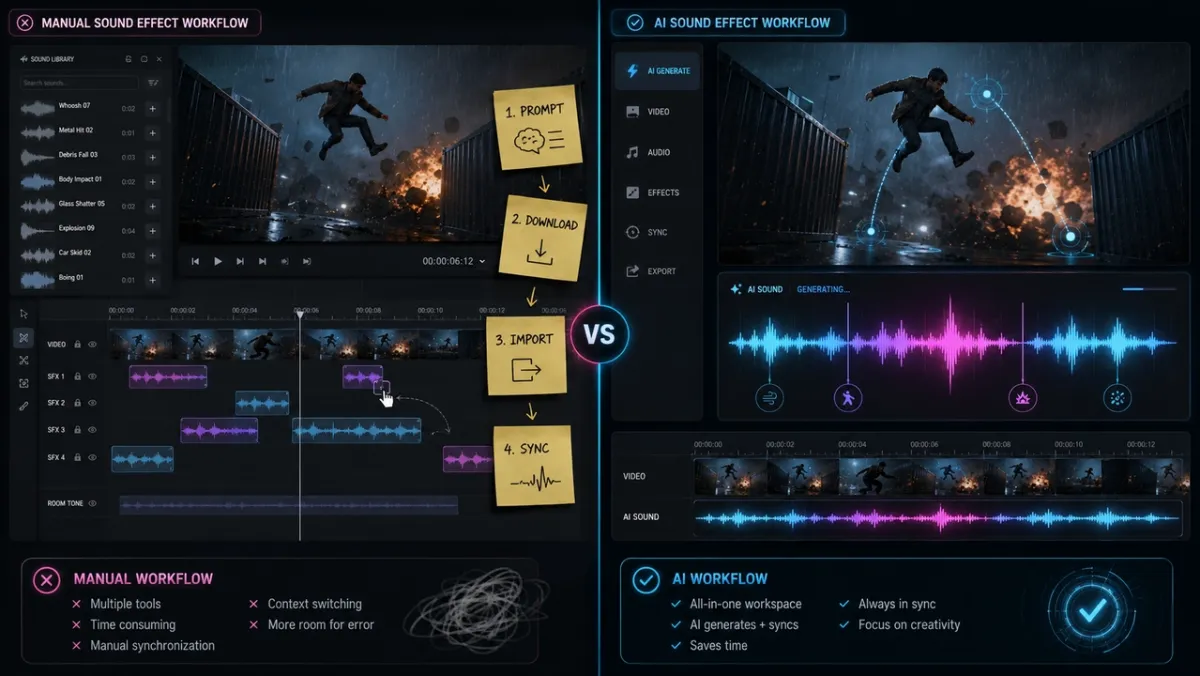
How We Picked the Best AI Sound Effect Generator Tools
We evaluated each AI sound effect generator through the lens of video production, not just standalone audio quality. A sound can be impressive in isolation and still slow you down if it takes too long to place inside a timeline.
Our criteria were:
- Best use case: Who should actually choose this tool?
- Input method: Does it use text, video, reference audio, microphone input, or an editor timeline?
- Video synchronization: Does the tool help align audio to motion, or does the user still need manual timeline work?
- Output control: Can users guide duration, intensity, prompt influence, looping, or original audio mixing?
- Rights and pricing clarity: Is there a free tier, credit model, commercial-use note, or official pricing page?
- Workflow friction: How many steps sit between idea, generated sound, and finished video?
1. PixVerse Sound Effect Generator: Best for Video-to-Audio Sync
Best for: Creators who need sound effects generated from video and aligned to motion.
Why it stands out: PixVerse focuses on the video editing bottleneck. Instead of asking you to describe every sound in a text prompt, the Sound Effect Generator can use an uploaded video as the source. The PixVerse Platform Docs also expose sound effect generation through an API endpoint that accepts a source video ID, an original sound switch, and optional sound effect content.
Where to find it: PixVerse Sound Effect Generator
Limitations: It is strongest for short clips and fast production workflows. It is not meant to replace a full multitrack sound design session for complex film mixes.
PixVerse Test Experience
We tested the tool with a short clip of a heavy wooden door closing. After uploading the video from the Mini Apps section, PixVerse generated a deep thud at the visual impact point. We also tested the “Keep original audio” switch, which mixed the generated impact with the room tone already present in the file. The important difference was not only the sound itself, but the removal of the usual search, download, import, and timeline alignment loop.
PixVerse Pros and Cons
- Pros:
- Generates sound effects from video instead of only from text.
- Reduces manual synchronization work for short-form and AI video creators.
- Supports keeping or replacing original audio for simple mixing decisions.
- Fits naturally with PixVerse video workflows, including clips made with PixVerse V6 and other AI video generators.
- Cons:
- Better for single-clip enhancement than complex multitrack film sound design.
- Users who need frame-by-frame audio sculpting may still want a DAW or NLE.
PixVerse Pricing
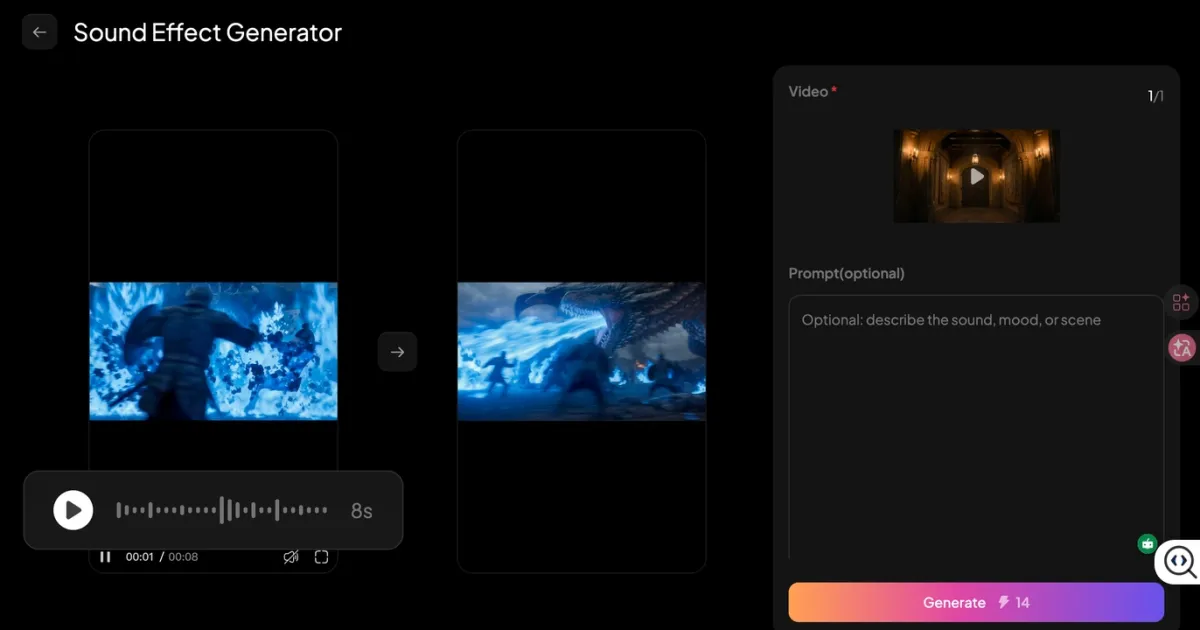
PixVerse uses credits for generation. In our test, a 6-second video used 14 credits. For API workflows, the official sound effect generation endpoint uses a source video ID and an original sound switch, which makes it relevant for teams that want to automate post-production audio around PixVerse video assets.
2. ElevenLabs Sound Effects: Best for Cinematic Text-to-SFX Control
Best for: Creators who want detailed text prompts, multiple variations, duration control, and downloadable audio files.
Why it stands out: ElevenLabs Sound Effects is built around text-to-audio generation. Its docs list controls for duration, looping, and prompt influence, and each generation creates four sound effects. This makes it useful when you know exactly what sound you want before you place it in a video.
Where to find it: ElevenLabs Sound Effects
Limitations: It is not primarily a motion-aware video-to-audio tool. After downloading MP3 or WAV output, you still need to align the result in an editor if the sound must hit a visual cue.
ElevenLabs Test Experience
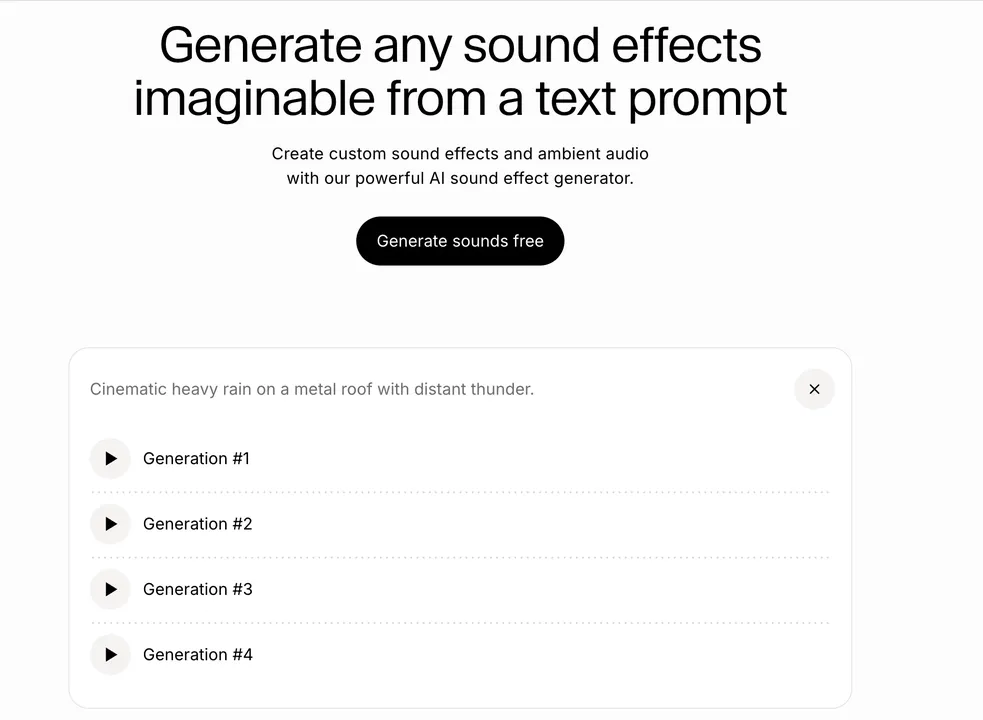
We tested ElevenLabs with the prompt: “Cinematic heavy rain on a metal roof with distant thunder.” The tool returned four variations quickly, and the ambience had useful texture for a dramatic scene. The friction appeared later: we downloaded the audio, imported it into Adobe Premiere Pro, and manually moved the thunder hit to match a lightning flash.
ElevenLabs Pros and Cons
- Pros:
- Strong fit for descriptive text prompts and controlled standalone SFX.
- Duration, looping, and prompt influence controls help refine output.
- MP3 and WAV downloads make it flexible for many editing tools.
- Cons:
- Manual video sync is still required for precise visual timing.
- Prompt quality matters, especially for uncommon or layered sounds.
ElevenLabs Pricing
ElevenLabs lists a Free plan and a Starter plan at $6 per month as of May 31, 2026. Sound Effects appears in the plan comparison, but teams should always check the current ElevenLabs pricing page before budgeting around credits or commercial use.
3. Adobe Firefly Generate Sound Effects: Best for Adobe Creative Workflows
Best for: Creators who already use Adobe tools and want a sound effect generator that accepts text, reference audio, or a mic performance.
Why it stands out: Adobe Firefly Generate Sound Effects lets users describe an effect, upload reference audio, or act out timing and intensity into a microphone. Adobe also positions Firefly sound effects as royalty-free and commercial-ready when used under its guidelines.
Where to find it: Adobe Firefly Sound Effects
Limitations: It is a strong creative audio option, but creators still need to make placement and layering decisions. It is best when you want control inside a broader Adobe workflow, not necessarily the fastest one-click route from arbitrary video clip to synced SFX.
Adobe Firefly Pros and Cons
- Pros:
- Supports text prompts, reference audio, and microphone performance.
- Useful for creators who want to guide timing and intensity by acting out a sound.
- Adobe states that Firefly-generated sound effects are designed for commercial use under its terms.
- Cons:
- Best value appears when you are already inside the Adobe ecosystem.
- Prompt and media guidance still require creative judgment.
Adobe Firefly Pricing
Firefly access and generative credits depend on the user’s Adobe plan. Check Adobe’s current plan details before choosing it for high-volume sound effect work.
4. Canva AI Sound Effect Generator: Best for Quick Social and Design Projects
Best for: Social media posts, presentations, product explainers, quick video edits, and creators who already build in Canva.
Why it stands out: Canva’s AI sound effect generator is designed for speed. Canva says users can provide a text prompt, set duration and intensity, and generate sound effects for personal or professional projects.
Where to find it: Canva AI Sound Effect Generator
Limitations: Canva is convenient for design and social workflows, but it is not a specialist post-production audio workstation. If you need exact impact timing against a fast action clip, a video-to-audio tool or editor timeline may still be better.
Canva Pros and Cons
- Pros:
- Low-friction option for creators already making videos or social assets in Canva.
- Duration and intensity controls are easy for non-audio specialists.
- Good fit for lightweight marketing and presentation content.
- Cons:
- Less suitable for detailed cinematic sound design.
- Not primarily built around uploaded video motion analysis.
Canva Pricing
Canva states that its AI sound effect maker includes one free credit for one custom sound effect regardless of subscription plan. Additional sound effects require credits, so production teams should confirm current credit pricing inside Canva.
5. LoudMe AI Sound Effect Generator: Best for Royalty-Free Browser SFX
Best for: Creators who want a browser-based text-to-SFX tool with royalty-free positioning.
Why it stands out: LoudMe emphasizes text-prompted sound effects, downloads, sharing, and royalty-free use for personal and commercial projects. It can be a practical option for simple custom effects when you do not want to install software.
Where to find it: LoudMe Sound Effect Generator
Limitations: It still follows the common text-to-audio pattern: generate, download, then place the file in your editor. The page is useful for quick SFX, but it does not solve video timeline alignment by itself.
LoudMe Pros and Cons
- Pros:
- Browser-based text prompt workflow.
- Useful for nature, urban, machinery, creature, game, and production effects.
- LoudMe positions generated sound effects as royalty-free.
- Cons:
- Manual sync is still required for video editing.
- The interface is simpler than a full audio or video production suite.
LoudMe Pricing
LoudMe’s pricing page lists sound effects at 2 credits each as of May 31, 2026. Confirm current credit bundles before using it for a large content batch.
6. CapCut AI Sound Effects Generator: Best for Short-Form Timeline Editing
Best for: TikTok, Reels, Shorts, vlogs, and mobile-first editors who already use CapCut.
Why it stands out: CapCut’s AI sound effects generator is built around editing convenience. CapCut says its app can analyze video projects and add sound effects that match motion, transitions, and scene changes. It also gives users multiple effect options and access to a royalty-free sound library.
Where to find it: CapCut AI Sound Effects Generator
Limitations: CapCut is easiest if your editing already happens inside CapCut. It is less ideal if you need a standalone SFX workflow for assets made across many platforms.
CapCut Test Experience
We tested CapCut with a forest walking clip and searched for “crunchy autumn leaves footsteps.” The tool returned several usable sound options quickly, and dragging one into the timeline was fast. This is a strong workflow for editors who want speed inside a familiar app, though the result can feel closer to guided audio selection than fully custom synthesis.
CapCut Pros and Cons
- Pros:
- Fast for short-form video editing.
- Useful when the creator already works inside CapCut.
- Combines generated or suggested effects with an editor timeline.
- Cons:
- Less portable than a standalone audio generator.
- Some features and asset access can vary by account, platform, and region.
CapCut Pricing
CapCut has a free entry point, while Pro and AI features can vary by market and account. Check the current app or official CapCut pages before planning a high-volume workflow.
7. Pika Pikaformance: Best for Sound Inside Pika Video Workflows
Best for: Creators who are already generating or editing video inside Pika and want audio as part of that ecosystem.
Why it stands out: Pika’s pricing page lists Pikaformance with audio duration up to 10 seconds on free access and up to 30 seconds on paid access, at 3 credits per second as of May 31, 2026. This makes it relevant for users who want sound within a Pika-native video workflow.
Where to find it: Pika Pricing
Limitations: Pika is not the best choice if you need to upload arbitrary external clips from other AI video generators and produce separate synchronized sound effects for them. It is strongest when the video workflow stays inside Pika.
Pika Test Experience
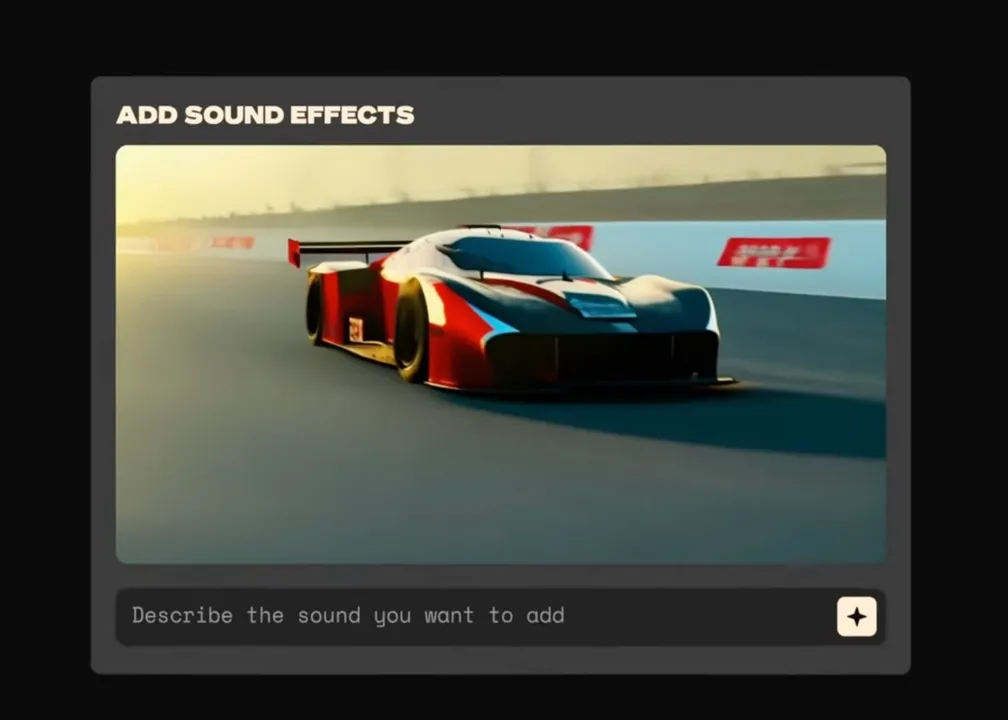
We generated a short race car clip in Pika and used its audio workflow to add engine and tire sound. The result was useful for a finished platform-native clip, but we did not get the same flexible “upload any video and generate synced SFX” path that PixVerse targets with its sound effect Mini App.
Pika Pros and Cons
- Pros:
- Convenient if you already generate video in Pika.
- Audio is part of the same creative environment.
- Pricing page provides clear credit information for Pikaformance.
- Cons:
- Less open for external video-to-audio workflows.
- Audio controls depend on Pika’s current product surface.
Pika Pricing
Pika lists a Basic plan at $0 and paid plans starting at $8 per month when billed yearly as of May 31, 2026. Pikaformance is listed at 3 credits per second.
8. Meta AudioCraft: Best Free/Open-Source Option for Developers
Best for: Developers, researchers, and technical teams that want local control over generative audio experiments.
Why it stands out: Meta AudioCraft is an open-source library for audio processing and generation. It includes generative audio components such as AudioGen and MusicGen, making it relevant for teams that want to build their own sound effect workflows rather than use a browser app.
Where to find it: Meta AudioCraft on GitHub
Limitations: It is not friendly for casual creators. You need setup time, Python comfort, and hardware planning. It also does not provide a built-in visual timeline for syncing effects to video.
Meta AudioCraft Test Experience
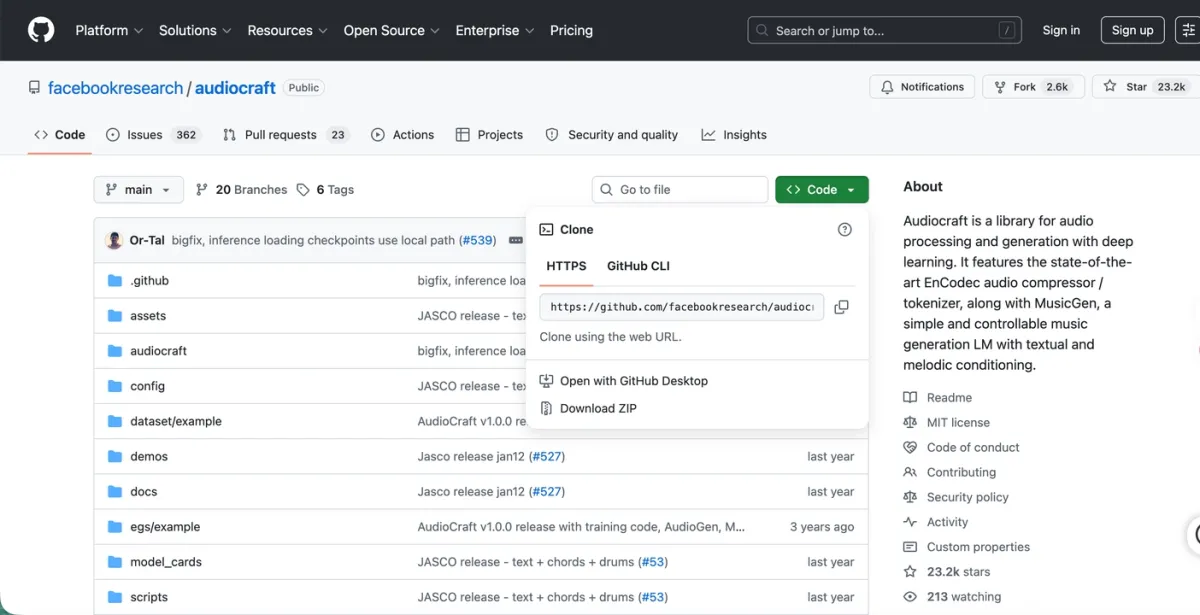
We tested AudioCraft locally on a workstation with a high-end GPU. Ambient scenes were easier to produce than sharp, frame-specific impact effects. The main advantage was control and local experimentation. The main drawback was the same as most text-to-audio tools: once the file is generated, the editor still has to place it against the video.
Meta AudioCraft Pros and Cons
- Pros:
- Open-source and useful for research or custom applications.
- Can run in controlled local environments.
- Strong option for teams that want to inspect and modify code.
- Cons:
- High setup burden for non-developers.
- Requires manual video sync after audio export.
Meta AudioCraft Pricing
The code is open source. The real cost is hardware, engineering time, and operations.
9. MyEdit AI Sound Effect Generator: Best for Quick Browser Tasks
Best for: Marketers, social creators, and editors who need a quick standalone sound effect without installing software.
Why it stands out: MyEdit is a lightweight browser option. It is useful when the task is simple, such as creating a beep, pop, transition, whoosh, or short ambience layer for a small project.
Where to find it: MyEdit AI Sound Effect Generator
Limitations: It is not designed around video analysis. You still need to download the result and sync it manually in your editor.
MyEdit Test Experience
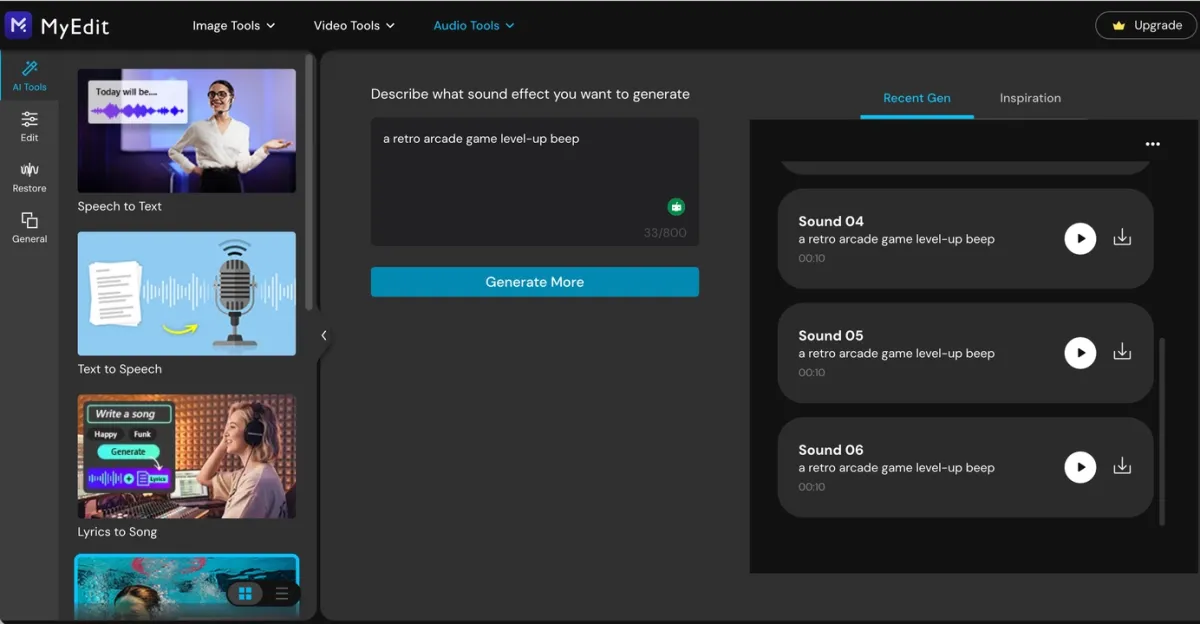
We used MyEdit to generate a retro arcade level-up beep. The output was fast and practical for a short social clip, but it did not include any way to preview or align the sound against video inside the same workflow.
MyEdit Pros and Cons
- Pros:
- Fast browser workflow.
- Useful for simple effects and quick experiments.
- No heavy desktop installation.
- Cons:
- Limited control compared with specialist audio tools.
- Manual video sync is still required.
MyEdit Pricing
MyEdit uses a freemium credit model. Check current free-credit and paid-plan limits before using it for a large batch.
Text-to-Audio vs Video-to-Audio: Which Workflow Should You Choose?
There are three practical ways to create AI sound effects today.
AI-Assisted Retrieval
AI-assisted retrieval tools help you find existing sounds faster. They are useful when you are editing inside a known app and need common effects like transitions, footsteps, swipes, clicks, and ambience. The limitation is that you are still working from a library, not generating a unique sound from scratch.
Text-to-Audio
Text-to-audio tools generate sound from written prompts. They are good for custom Foley, ambience, UI sounds, fantasy effects, product sounds, and game audio. They are less efficient when timing matters, because you usually need to download the audio and place it manually in a video editor.
Choose text-to-audio when:
- You know exactly what sound you want.
- You need multiple variations from a prompt.
- The sound is ambience, texture, or background rather than a precise frame hit.
- You are comfortable editing the final audio manually.
Video-to-Audio
Video-to-audio tools use the visual clip as the source. The tool can infer timing from motion, impact, and scene changes, then generate sound that is already aligned to the action. This is the more efficient route when your main goal is to add an AI sound effect to video quickly.
Choose video-to-audio when:
- You already have a finished clip.
- The sound needs to match an exact movement or impact.
- You want to avoid searching stock libraries.
- You publish short-form videos and need a faster post-production loop.
Best AI Sound Effect Generator From Video
If the query is specifically “AI sound effect generator from video,” PixVerse is the best fit in this list. The reason is simple: the source input is the video itself. Instead of starting with a prompt and asking the user to handle timing later, PixVerse starts from the clip and generates sound effects around the motion.
This matters for:
- Door slams, impacts, footfalls, object drops, and transitions.
- AI-generated videos that look complete but still feel silent or flat.
- Short-form clips where the sound needs to land immediately.
- Video teams that want to automate audio generation through a source video ID.
For creators building with PixVerse, this means you can generate the visual clip, add sound effects, and continue refining the final asset without rebuilding the whole post-production chain from scratch.
AI Sound Effect Prompt Examples
Text-to-audio tools still need strong prompts. Use concise but specific language, and include the object, action, environment, material, intensity, and duration when useful.
| Use case | Prompt example |
|---|---|
| Product video | ”soft magnetic snap of a premium cosmetic compact closing, clean studio sound, short and satisfying” |
| Cinematic impact | ”heavy wooden door slamming shut in a stone hallway, deep thud, subtle room echo” |
| UI interaction | ”bright futuristic interface confirmation beep, tiny sparkle tail, under one second” |
| Nature ambience | ”light rain on leaves in a quiet forest, gentle wind, no thunder, seamless loop” |
| Action clip | ”motorcycle tire skid on wet asphalt, close perspective, sharp start, short fade” |
| Game effect | ”retro arcade level-up chime, playful 8-bit energy, two seconds” |
For video-to-audio tools, the prompt can be shorter because the clip already provides visual context. Instead of describing every frame, use a small hint such as “soft thud,” “metal scrape,” “glass shatter,” or “low cinematic hit.”
Troubleshooting Common AI Audio Issues
Even the best AI sound effect generator can produce a weak result if the source clip, prompt, or workflow is unclear. These fixes solve the most common problems.
The sound misses the exact visual frame
Cause: The clip contains too much rapid motion or too many possible sound sources.
Fix: Cut the video down to the two or three seconds where the key action happens. If the tool supports a prompt hint, add a direct phrase like “door slam” or “soft object drop.”
The audio sounds muddy
Cause: The generated sound is competing with existing music, dialogue, or noisy background audio.
Fix: Turn off original audio when generating replacement SFX, or reduce the original track before adding a new effect. If dialogue matters, clean or isolate the voice first.
The tool generates the wrong sound
Cause: The prompt is too broad, or the visual cue is ambiguous.
Fix: Add material, action, and intensity. “Impact” is vague. “Small ceramic cup tapping a wooden table” is much easier for a model to interpret.
The generated sound is too long
Cause: The tool is using automatic duration, or your prompt implies ambience instead of a short effect.
Fix: Specify duration in the prompt or tool settings. Use phrases like “under one second,” “short hit,” “two-second loop,” or “quick transition.”
The workflow still feels slow
Cause: You are using a text-to-audio tool for a video timing problem.
Fix: Use a video-to-audio tool such as PixVerse when the audio must match an existing clip. Use text-to-audio when the sound can be edited separately.
FAQs
What is the best AI sound effect generator for video?
For video-specific workflows, PixVerse is the strongest fit in this list because it can generate sound effects from an uploaded video and align audio to motion. CapCut is also useful for creators already editing inside CapCut. If you only need standalone audio files, ElevenLabs, Adobe Firefly, LoudMe, Canva, AudioCraft, and MyEdit are better text-to-audio options.
Can an AI sound effect generator create sound from video?
Yes. A video-to-audio AI sound effect generator can analyze an uploaded clip, infer the key action, and generate a matching sound effect. PixVerse is designed around this workflow. CapCut also describes automatic sound effect generation from video projects inside its app.
What is the difference between text-to-audio and video-to-audio?
Text-to-audio starts with a written prompt and produces an audio file. Video-to-audio starts with a video clip and uses the visuals to guide timing and sound choice. Text-to-audio is better for standalone Foley and ambience. Video-to-audio is better when sound must match on-screen motion.
What is the best free AI sound effect generator?
The best free option depends on your skill level. Meta AudioCraft is open source and flexible for developers, but it is not simple for everyday creators. Canva, ElevenLabs, CapCut, Pika, LoudMe, and MyEdit all offer some kind of free or freemium access, but credit limits and commercial terms can change.
Are AI-generated sound effects royalty-free?
Some platforms explicitly describe generated sound effects as royalty-free or commercial-ready, including Adobe Firefly and LoudMe under their published terms. Other tools may depend on your plan, usage rights, account type, or region. Always check the current terms before using generated sound effects in ads, games, paid client work, or monetized videos.
Can I use generated sounds for YouTube, TikTok, or ads?
Usually yes if the platform grants commercial or creator rights for your plan, but you should verify the specific tool’s terms. For brand campaigns, client work, and paid ads, keep a record of which platform generated the sound, when it was generated, and which license or subscription applied.
Can I use the PixVerse sound effect generator with PixVerse V6?
Yes. You can generate video with PixVerse V6 or another PixVerse workflow, then use the Sound Effect Generator to add synchronized audio during post-production. This is useful when the visual clip is ready but the audio still needs impact, ambience, or motion-matched effects.
How do I write a good AI sound effect prompt?
Start with the object and action, then add material, environment, emotion, and duration. For example, “heavy metal gate closing in an empty warehouse, deep echo, two seconds” is better than “gate sound.” If you are using video-to-audio, keep the prompt shorter and use it as a hint rather than a full scene description.
Which AI sound effect generator should I choose?
Choose PixVerse if you need AI sound effects from video. Choose ElevenLabs if you want detailed text-to-SFX control. Choose Adobe Firefly if you work in Adobe and want prompt, reference audio, or mic-guided generation. Choose Canva for simple social/design projects. Choose LoudMe or MyEdit for quick browser effects. Choose CapCut if you edit inside CapCut. Choose AudioCraft if you are a developer building your own workflow.
Conclusion
The best AI sound effect generator is not the same tool for every creator. Text-to-audio generators are useful when you need specific standalone sounds. Browser tools are useful when speed matters more than deep control. Editor-native tools are useful when your whole workflow already lives in one app.
For video creators, the bigger question is whether the tool solves synchronization. If a generated sound still needs manual placement, it can slow down the same workflow it was supposed to improve. PixVerse is built for that specific gap: it can generate sound effects from video and align them to motion, giving creators a faster path from silent AI clip to finished sound-on video.
Try the PixVerse Sound Effect Generator to turn your next video clip into a more complete audiovisual asset.