Gemini Omni YouTube Shorts Guide: AI Remix, Watermarks and PixVerse
Learn how Gemini Omni works in YouTube Shorts Remix, who can use it, what watermarks and creator controls mean, and when to use PixVerse for original 9:16 Shorts.
Google is putting Gemini Omni directly into the YouTube Shorts creation loop. Instead of treating AI video as a separate generator, Shorts Remix can now use prompts and images to rework eligible Shorts inside YouTube, with watermarking, metadata, source links, creator opt-out, and likeness controls built into the flow.
For creators, the first decision is where the idea starts. If it starts from an eligible Short you want to remix inside YouTube, Gemini Omni is the native tool to watch. If it starts from your own brief, product image, script, ad concept, or channel format, PixVerse is the better place to create original 9:16 video assets before publishing.
This article focuses on the YouTube Shorts use case: who can use Gemini Omni Remix, what makes a Short eligible, what watermarks and metadata mean, why the Remix option may not show up, whether commercial use is safe, and when original Shorts production in PixVerse is the cleaner workflow.
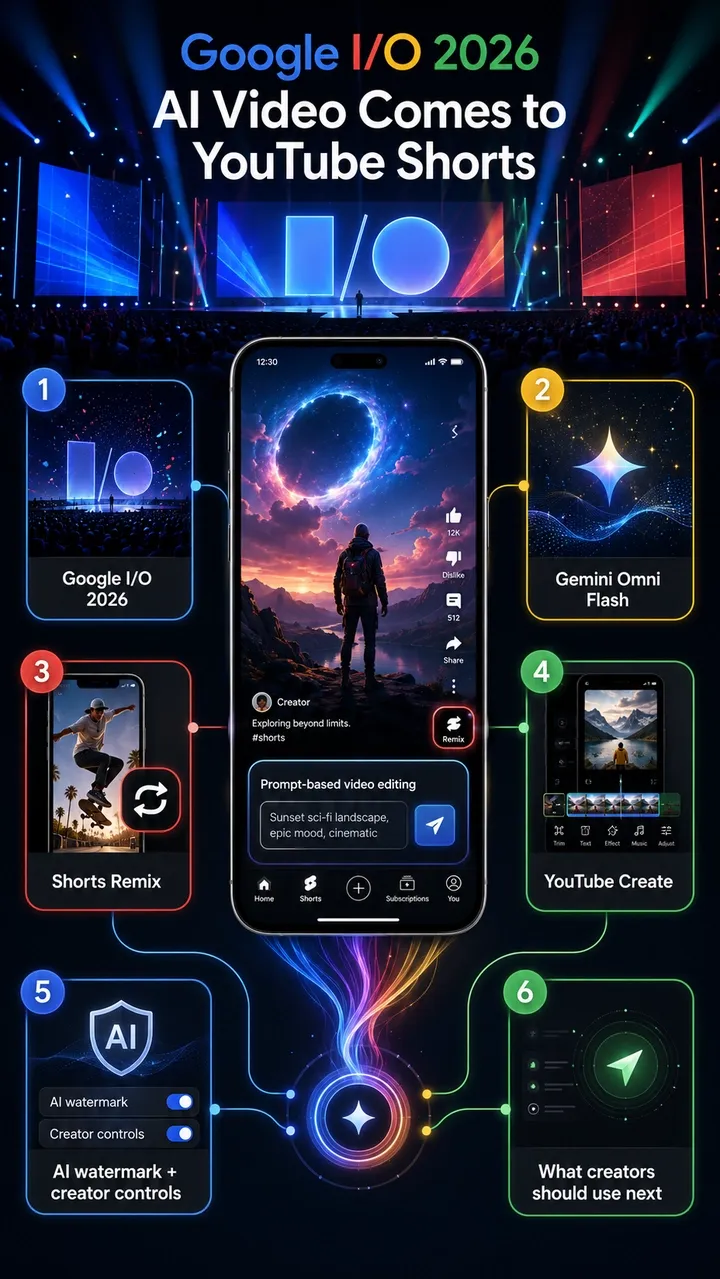
What Google Announced for YouTube Shorts
Google’s official YouTube Blog post from May 19, 2026 confirms the core update: Gemini Omni is rolling out in YouTube Shorts Remix and the YouTube Create app. Google describes it as a way to remix an eligible Short by adding prompts and images to create a new vision while keeping context from the original video.
Google’s broader I/O 2026 announcement roundup also confirms Gemini Omni’s role in YouTube Shorts Remix and YouTube Create. For YouTube, the important change is not only model capability. It is distribution: Gemini Omni is entering the native Shorts workflow where creators already respond to trends, audience feedback, and remix culture.
The confirmed YouTube facts are:
- Gemini Omni Flash is entering YouTube Shorts Remix.
- Gemini Omni is also entering the YouTube Create app.
- Users can remix eligible Shorts with prompts, images, or references.
- YouTube gives examples such as changing a Short into a 90s-style scene or inserting yourself beside a creator.
- Omni-remixed Shorts include digital watermarks, identifying metadata, and a link back to the original video.
- Original creators can opt out of visual remix in Shorts.
- YouTube says likeness detection is expanding to all creators aged 18 and older.
- YouTube says Remixing with Omni is rolling out at no cost in Shorts Remix and YouTube Create, with AI Playground support coming soon.
Who Can Use Gemini Omni in YouTube Shorts?
YouTube says Gemini Omni is rolling out at no cost in Shorts Remix and YouTube Create, but “free rollout” does not mean every account will see the feature on the same day. Availability can depend on rollout timing, account eligibility, region, app version, age settings, and whether the Remix surface is available for the Short you are viewing.
In practice, users may need:
- An eligible YouTube account with access to the current Shorts Remix surface.
- A supported region and the latest YouTube app.
- An account that meets age and platform requirements, especially for creator identity and likeness tools.
- An eligible Short where the original creator and platform rules allow visual remix.
- The relevant AI remix or reimagine option to have reached their account.
If Gemini Omni Remix is not showing, it usually does not mean you are doing anything wrong. It may simply be rollout timing, a region or account limitation, an older app version, creator opt-out, or a Short that is not eligible for AI Remix.
How to Use Gemini Omni in YouTube Shorts Remix
The YouTube-native workflow is remix-first. You do not start with a blank production timeline; you start from an eligible Short, then use Gemini Omni to reimagine it.
- Open the YouTube app and find an eligible Short.
- Tap Remix on the Short.
- Choose the AI remix, restyle, or reimagine option when it is available on your account.
- Enter a clear prompt, or choose a suggested prompt where YouTube provides one.
- Add a reference image from your gallery if the tool supports it and you have the right to use that image.
- Generate the remixed clip and preview the result.
- Use Shorts creation tools for final edits, captioning, music, or publishing checks.
For stronger results, write prompts with a clear subject, action, visual style, camera direction, and audio expectation. If you need a person, object, or product to remain recognizable, use an appropriate reference and make sure you have permission to use it. For commercial or branded work, do not treat a successful remix as an automatic rights clearance.
What Counts as an Eligible Short?
YouTube uses the phrase “eligible Short” because not every Short can be remixed in the same way. Eligibility can vary by account, region, content type, creator settings, copyright status, music rights, and platform safety systems.
An eligible Short generally means the remix option is available for that video in your app and account. A Short may not be eligible if the original creator has disabled visual remix, if the content is restricted by YouTube rules, or if copyright, music, Content ID, age, Made for Kids, privacy, or policy settings limit how it can be reused. YouTube’s Help documentation also notes that Remix options can vary by content and that creators have controls over how their Shorts are reused.
The safest rule is simple: if the Remix or AI Remix option is not visible, do not assume the feature is broken. The Short may not be eligible, the creator may have opted out, your account may not have the rollout yet, or the content may be affected by rights and platform restrictions.
Watermark, Metadata, Original Links, and Creator Controls
Watermarking and attribution are not side details in YouTube Gemini Omni. They are part of the platform-native workflow. YouTube is trying to let people remix quickly while still preserving signals about AI generation, original context, and creator control.
| Mechanism | What YouTube says | What it means for creators |
|---|---|---|
| Digital watermark | Omni remixes include digital watermarks. | AI generation can be identified even if the video is reshared or reviewed later. |
| Identifying metadata | Omni remixes include identifying metadata. | The platform can carry AI-generation signals beyond what viewers see on screen. |
| Original video link | Remixes link back to the original video. | Source context and attribution remain part of the remix experience. |
| Visual remix opt-out | Original creators can opt out of visual remix in Shorts. | Creators keep more control over whether others can visually transform their Shorts. |
| Likeness detection | YouTube says likeness detection is expanding to creators aged 18 and older. | Real-person identity and creator likeness are becoming a formal safety layer. |
For creators using Gemini Omni, this means two things. First, AI Remix is not invisible; it carries provenance signals. Second, a remix workflow does not erase the original creator’s context or rights. If your content strategy depends on clean brand ownership, reusable assets, or cross-platform publishing, start from original assets instead of someone else’s Short.
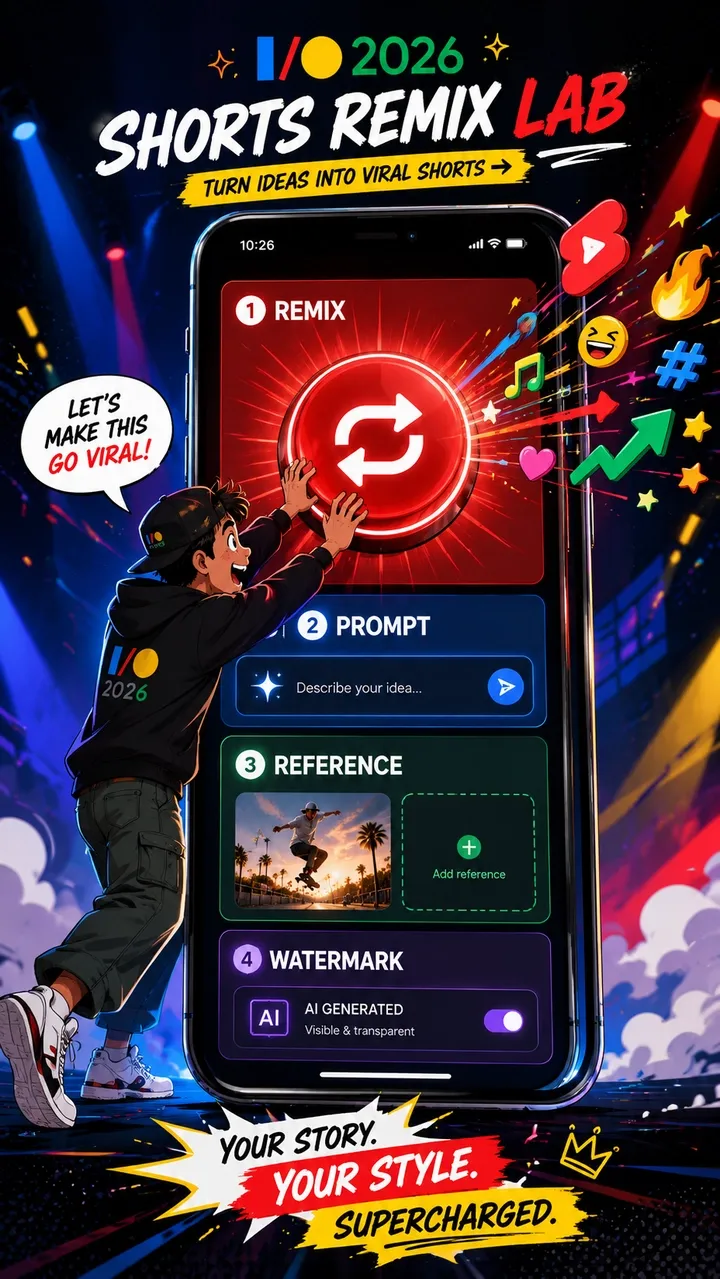
What Gemini Omni Changes for Shorts Creators
The creator impact is bigger than a new button. Shorts creation has always rewarded speed: react to a trend, add a twist, publish, learn from retention, and repeat. Gemini Omni reduces the gap between seeing a trend and making a new version of it.
The biggest change is that Remix becomes generative. A creator can use a prompt to change the setting, style, subject, or action of an eligible Short. Reference images and self-insertion can pull identity, objects, and style into the same creation loop. Prompting becomes a native creative skill for Shorts, not just something that happens in a separate AI tool.
That does not mean every Short should become AI-generated. It means the creative options inside Shorts are expanding. The advantage is speed and trend response. The risk is sameness, rights confusion, and low-quality AI output if creators remix without a clear idea, rights review, or editorial filter.
Can You Use Gemini Omni Shorts Commercially?
Maybe, but do not assume that free access equals commercial clearance. YouTube saying Gemini Omni Remix is rolling out at no cost does not mean every output is automatically safe for ads, sponsorships, ecommerce, brand campaigns, or cross-platform reuse.
Commercial risk depends on the source Short, music rights, creator opt-out settings, third-party copyright, Content ID, real-person likeness, brand logos, product claims, platform policies, AI disclosure, and the terms that apply to your account and use case. A remix may be fine for playful trend participation but unsuitable for a paid product campaign.
For brand ads, product videos, UGC-style ad variants, or cross-platform campaigns, the safer workflow is to start from an original brief. Use your own product images, owned brand assets, approved copy, licensed audio, and original characters or scenes. That is where PixVerse fits naturally: create original 9:16 Shorts assets first, then upload to YouTube when rights, format, and review are ready.
YouTube Gemini Omni Remix vs AI Shorts Generator
The practical decision is not “YouTube or PixVerse.” It is where this specific part of the Shorts workflow should happen. Use YouTube Gemini Omni for Remix inside Shorts. Use PixVerse or another standalone AI video generator when the job starts from an original brief, product asset, script, or ad objective.
| Need | YouTube Gemini Omni | PixVerse / standalone AI video generator |
|---|---|---|
| Remix existing Short | Strong | Not the core use case |
| Original 9:16 video | Medium | Strong |
| Product ad / UGC ad | Medium | Strong |
| Batch hook testing | Weak | Strong |
| Cross-platform reuse | Medium | Strong |
| API workflow | Weak | Strong |
| Creator trend response | Strong | Medium |
| Brand safety control | Medium | Strong |
For trend participation, YouTube’s native tools are hard to beat because they sit directly inside the culture loop. For planned production, a standalone AI video generator gives creators more control before the video ever reaches YouTube.
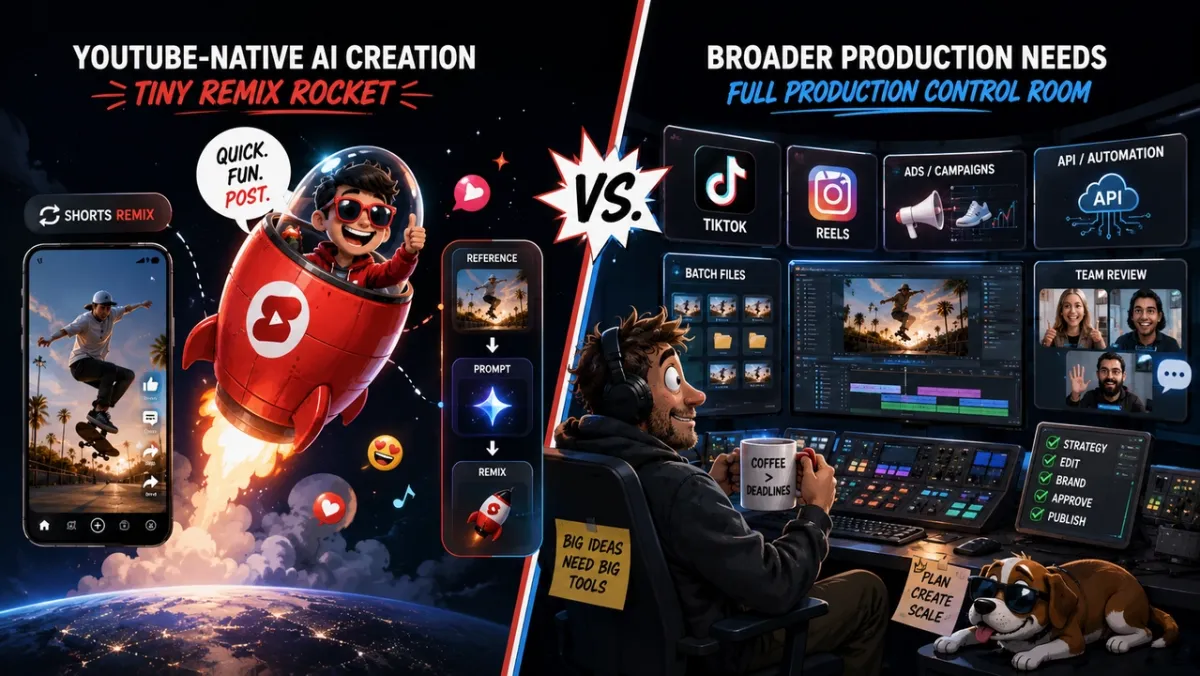
Where PixVerse Fits into the Shorts Workflow
PixVerse is not a replacement for YouTube Shorts Remix. It fits a different part of the workflow: creating original AI video assets before publishing them to Shorts, Reels, TikTok, or ad platforms.
For YouTube Shorts creators, PixVerse is useful when the work starts from a brief rather than a remix. Text-to-video and image-to-video can generate original vertical assets. The PixVerse V6 docs list 9:16 as a supported aspect ratio, with 1-15 second generation in supported workflows and 360p, 540p, 720p, and 1080p options. Audio generation, transition, extension, and multi-clip options are also documented for supported V6 flows.
That makes PixVerse useful for original Shorts concepts, product visuals, branded hooks, faceless channel scenes, and multi-version tests. Transition and Extend workflows help when a creator needs more than one shot. The PixVerse pricing docs also make API and credit planning more transparent for teams that need repeatable production.
The clean workflow is simple: use YouTube Gemini Omni when you want to remix inside Shorts, and use PixVerse when you want to create original video assets before publishing them wherever your audience is.
Original 9:16 Shorts Workflow with PixVerse
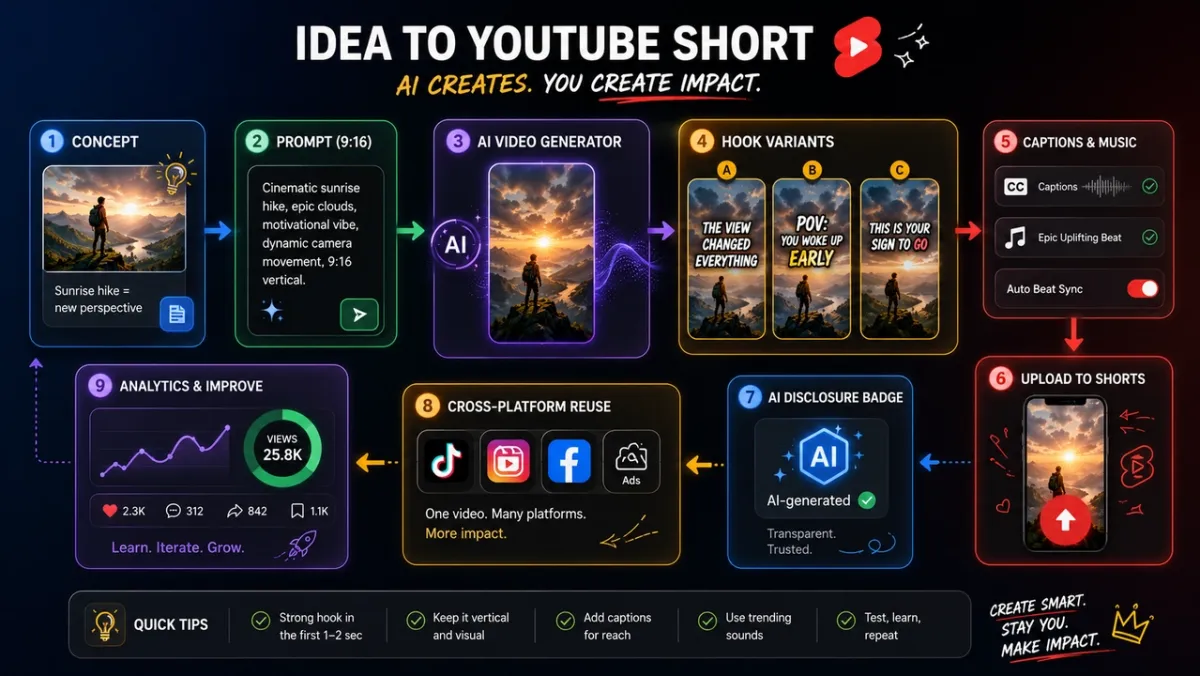
Use this workflow when you want original assets before uploading to YouTube Shorts:
- Choose the Shorts objective: trend response, product hook, education clip, faceless channel scene, creator bit, or social ad.
- Write a 9:16 prompt with subject, action, camera, style, motion, sound, and final frame.
- Add product images, brand assets, or reference images only when you have the rights to use them.
- Generate the core video asset in PixVerse.
- Create multiple hook variations so you can test the first 1-3 seconds.
- Add captions, title, music, sound effects, or voiceover.
- Review rights, formatting, AI disclosure, product claims, and platform fit.
- Upload to YouTube Shorts, then reuse the best-performing version across TikTok, Reels, ads, or landing pages where rights and formatting allow.
This is the better path when you need original product clips, ad variants, faceless Shorts, social-first brand concepts, or reusable assets. Remix is excellent for joining a platform conversation. Original 9:16 generation is better for building an asset library.
Troubleshooting Gemini Omni Shorts Remix
Why is Gemini Omni Remix not showing?
The most common reasons are rollout timing, unsupported region, account eligibility, app version, age settings, or a Remix surface that has not reached your account. Update the YouTube app, check another eligible Short, and remember that feature rollout can be gradual.
Why can’t I remix this Short?
The Short may not be eligible. The original creator may have opted out of visual remix, the content may be affected by copyright or music restrictions, or YouTube may limit Remix because of policy, age, privacy, Made for Kids, or Content ID-related factors.
Why does my generated Short include watermark or metadata?
YouTube says Omni-remixed Shorts include digital watermarks and identifying metadata. These signals help identify AI-generated content and preserve platform context. They are expected behavior, not a bug.
Can creators disable AI Remix?
YouTube says original creators can opt out of visual remix in Shorts. Exact controls may depend on YouTube Studio settings, account type, and the current rollout. If you are a creator, check your YouTube settings and Help documentation before assuming your content is remixable.
Does Gemini Omni Remix work outside YouTube?
Gemini Omni in Shorts Remix is a YouTube-native workflow. For cross-platform Shorts, TikTok, Reels, ads, or reusable vertical assets, create original 9:16 videos in PixVerse or another standalone AI video generator before uploading.
FAQ
What is Gemini Omni in YouTube Shorts?
Gemini Omni in YouTube Shorts is Google’s AI video creation layer for Shorts Remix and YouTube Create. It lets users remix eligible Shorts with prompts and images or references while adding watermarking, metadata, and a link back to the original video.
How do you use Gemini Omni in YouTube Shorts Remix?
Open an eligible Short in the YouTube app, tap Remix, choose the AI remix or reimagine option if it is available, enter a prompt, add a reference image where supported, generate the clip, preview it, and complete final Shorts edits before publishing.
Is Gemini Omni free for YouTube Shorts?
YouTube says Remixing with Omni is rolling out at no cost in YouTube Shorts Remix and the YouTube Create app. Availability can still depend on rollout timing, account eligibility, region, app version, age requirements, and supported surfaces.
Why is Gemini Omni Remix not showing in my YouTube app?
It may not have rolled out to your account, region, app version, or Remix surface yet. The specific Short may also be ineligible because of creator opt-out, copyright, music, Content ID, age, privacy, or policy restrictions.
What is an eligible Short for Gemini Omni Remix?
An eligible Short is a Short where the Remix option is available for your account and app. Eligibility can depend on original creator settings, visual remix opt-out, copyright or music restrictions, platform policy, region, age settings, and rollout timing.
Can creators opt out of Gemini Omni visual remix?
Yes. YouTube says original creators can opt out of visual remix in Shorts. Creators should check current YouTube Studio and Help settings because controls can change as the feature rolls out.
Do Gemini Omni remixes include a watermark?
Yes. YouTube says Omni-remixed Shorts include digital watermarks, identifying metadata, and a link back to the original video.
Can I use Gemini Omni Shorts commercially?
Maybe, but do not assume automatic commercial clearance. Review the source Short, copyright, music, likeness, trademarks, platform rules, AI disclosure, and any terms that apply to your account. For brand campaigns, product ads, or cross-platform reuse, original 9:16 assets made in PixVerse are usually a safer starting point.
What is the difference between YouTube Gemini Omni and YouTube Create?
YouTube Gemini Omni is the AI model capability entering Shorts Remix and YouTube Create. Shorts Remix is the platform-native remix surface. YouTube Create is Google’s creator app for making and editing videos with YouTube tools.
When should I use PixVerse instead of YouTube Gemini Omni?
Use PixVerse when you want original 9:16 Shorts, product clips, UGC-style ads, hook variants, faceless channel assets, batch tests, API workflows, or reusable videos for Shorts, TikTok, Reels, and ads.
What is the best AI video generator for original YouTube Shorts?
For remixing eligible Shorts inside YouTube, use YouTube Gemini Omni. For original Shorts assets, PixVerse is a strong option to test because it supports 9:16 generation, text-to-video, image-to-video, audio options, transition, extension, and API workflows in documented PixVerse flows.
What aspect ratio should AI-generated YouTube Shorts use?
YouTube Shorts are designed for vertical viewing, so 9:16 is the standard aspect ratio for most Shorts production. If you generate outside YouTube, choose 9:16 whenever possible to avoid awkward cropping.
Conclusion
Gemini Omni coming to YouTube Shorts is a real workflow change, not just another AI effect. Shorts Remix is becoming a generative surface where prompts, images, references, watermarking, metadata, original links, and creator controls are part of the platform-native creation loop.
For creators, the best approach is to separate remix from original production. Use YouTube Gemini Omni when you want to participate in Shorts trends from inside YouTube. Use PixVerse when you need original 9:16 assets, product videos, hook variations, faceless Shorts, cross-platform reuse, or API-driven production. The winning Shorts workflow in 2026 will not be one tool. It will be choosing the right tool for each stage of the idea.