Can Grok Generate Videos? Grok Imagine Video 1.5, Prompts, Pricing and Limits
Yes, Grok can generate videos through Grok Imagine. See Video 1.5 updates, text-to-video limits, API pricing, prompts, and PixVerse testing tips.
Yes, Grok can generate videos through Grok Imagine, but the exact answer now depends on the product surface and model. xAI’s broader Imagine documentation describes video generation from text or still images, while the official grok-imagine-video-1.5-preview API model page lists Image and Video modalities and says the preview model currently does not support text-to-video.
That distinction matters if you are deciding what to test next. This guide covers the June 2026 Grok Imagine Video 1.5 Preview update, copy-ready prompts, API pricing notes, text-to-video limits, image-to-video and video-input workflows, and where PixVerse fits when you want to compare Grok with other AI video models in one creator workflow.
Can Grok Generate Videos?
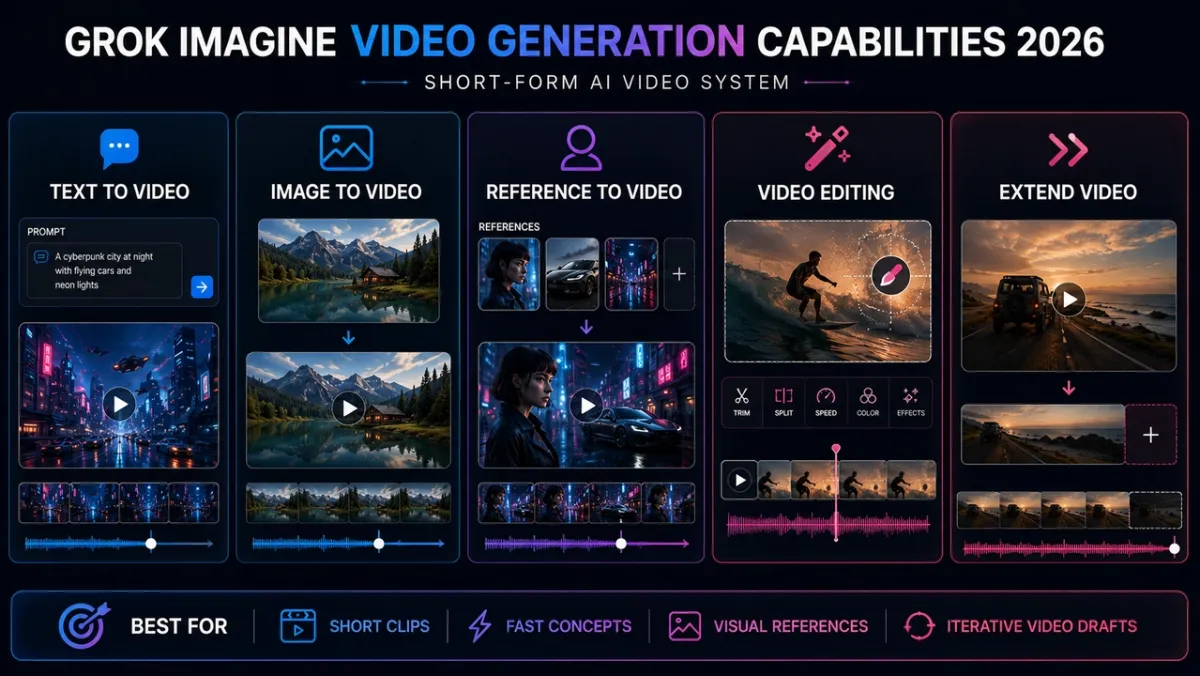
Yes. Grok generates videos through Grok Imagine, xAI’s image and video generation model family. The official xAI Imagine overview describes Imagine as supporting image generation, image editing, video generation from text or still images, video editing, reference-to-video, and video extension.
For searchers asking “does Grok have video generation?”, the practical answer is more nuanced than a simple yes. Grok Imagine can animate still images, support reference-led workflows, and handle video-oriented creation or editing paths in the broader Imagine documentation. Text-to-video, however, should not be assumed across every Grok video model. The current grok-imagine-video-1.5-preview API page specifically says that model does not support text-to-video.
That means the safest production answer is this: Grok video support depends on the surface you are using. Check whether you are working in Grok, X, the xAI API, or a partner workflow, then confirm the exact model name, accepted input type, pricing, rate limit, and output constraints before planning a campaign around it.
June 2026 Update: Grok Imagine Video 1.5 Preview
As of June 3, 2026, xAI has an official model page for grok-imagine-video-1.5-preview. The important update is not simply “Grok can make video.” It is that Grok Imagine now needs a clearer product-versus-model explanation.
The model page lists the model name as grok-imagine-video-1.5-preview, with the alias grok-imagine-video-1.5-2026-05-30. It lists Image and Video modalities, not a pure text-to-video path. It also says the model currently does not support text-to-video.
For pricing, the same model page lists output at $0.08 per second. It also lists image input at $0.01, video input at $0.08/sec for 480p, video input at $0.14/sec for 720p, and a rate limit of 60 requests per minute. Treat those as official-doc snapshots, not permanent campaign assumptions, because preview model access, rate limits, and pricing can change.
The safest wording is: Grok Imagine broader video workflows may include text-to-video depending on the product surface and model, but the current grok-imagine-video-1.5-preview API page lists Image and Video modalities and says it does not support text-to-video.
Grok Imagine vs Grok Imagine Video 1.5 Preview
Use this compact comparison when choosing a test path or writing a production brief.
| Model / surface | Supported input direction | Text-to-video status | Best use |
|---|---|---|---|
| Grok Imagine broader product and API workflows | Text, image, reference, edit, and extension workflows may appear depending on the exact surface. | Documented in the broader Imagine overview, but availability depends on the model and product surface. | Broad creative exploration across prompts, still-image animation, references, edits, and extensions. |
grok-imagine-video-1.5-preview API model | Image and video input workflows, according to the official model page. | Not supported on the current model page. | Controlled image-to-video and video-input tests with the newer preview model. |
Before using either path, verify current product access, model name, input type, duration, resolution, storage behavior, safety review, pricing, and rate limits. For cost planning, check the current xAI pricing page and the specific model page rather than relying on a general Grok Imagine claim.
Grok Imagine Video Features in 2026
For the broader Grok Imagine ecosystem, xAI’s current Imagine documentation lists configurable video generation, image-to-video, video editing, reference-to-video, and extension workflows. The key 2026 nuance is that these capabilities should be checked against the specific model page before you build a workflow around them.
Text-to-video is useful when the supported surface accepts a written prompt and you want quick concept exploration: short social clips, product moods, meme ideas, or cinematic sketches. For the 1.5 Preview API model, though, do not assume this path exists unless the model page changes.
Image-to-video is the more controlled route for product shots, posters, characters, thumbnails, and concept frames. The still image anchors the first frame, which helps when shape, composition, or identity matters.
Reference-to-video is useful when you need recurring visual identity without forcing the reference image to become the first frame. It is a better fit for character identity, product silhouette, wardrobe, style, or recurring objects.
Video editing and extension are production-minded workflows. Editing asks the model to revise an existing clip while preserving the rest of the scene; extension continues a clip from its ending frame. These are useful for weather changes, restyling, second beats, alternate endings, and short-form pacing tests.
Grok Imagine Prompts Worth Turning Into Videos
Start with prompts that show different strengths: product stability, human motion, and cinematic environment control. If you are using a Grok Imagine surface that supports text-to-video, use them directly. If you are testing grok-imagine-video-1.5-preview, first create or upload a starting image, then use the prompt as motion, camera, and style direction.
1. Product Ad Prompt
Use this prompt to test product readability, surface detail, lighting motion, and commercial polish.
Prompt:
A compact black wireless speaker sits on a rain-slicked rooftop at night. Neon signs reflect across the wet surface and tiny droplets bead on the speaker grille. The camera begins in an extreme macro close-up on the droplets, then slowly pulls back to reveal the skyline. A soft blue light pulses once around the speaker rim as rain falls in slow motion. Realistic premium product commercial, shallow depth of field, vertical 9:16, no text, no logo distortion.
Result note: A strong output should feel like a premium launch teaser: readable product silhouette, convincing rain, and a smooth pull-back that reveals the skyline without losing the speaker. The main weakness to watch for is product drift. If the grille, rim, or body shape changes too much during the camera move, the clip is visually attractive but less useful for real product work.
2. Character Social Clip Prompt
Use this prompt to test face stability, body motion, scene transition, and short-form hook energy.
Prompt:
A stylish young creator in a silver jacket stands in a tiny elevator lined with mirrored panels. The lights flicker once, then the elevator doors open onto a surreal midnight city street filled with glowing billboards and drifting steam. The camera tracks backward as she steps out, smiles at the camera, and raises a small camera toward the viewer. Fast social hook, cinematic but playful, crisp facial detail, smooth motion, vertical 9:16, no captions.
Result note: This prompt is good for judging whether Grok Imagine can hold a person through a fast social hook. The best result should make the elevator-to-street reveal feel surprising but continuous. The risk is facial instability: if the smile, eyes, or jacket details shift between shots, the clip may still work as a vibe test but not as a polished creator ad.
3. Cinematic Environment Prompt
Use this prompt to test camera scale, reflections, environmental motion, and cinematic composition.
Prompt:
A lone astronaut walks across a shallow mirror-like salt flat at sunrise. The sky is pale orange and violet, and a huge broken moon hangs low on the horizon. Each step sends a soft ripple through the reflective water. The camera starts behind the astronaut, then slowly cranes upward to reveal the vast landscape and a distant glowing research station. Epic cinematic sci-fi mood, realistic reflections, slow graceful motion, widescreen 16:9, no text.
Result note: This is the strongest cinematic stress test of the three because it asks for scale, reflection, and controlled camera movement at the same time. A good result should make the salt flat, ripples, moon, and crane-up feel spatially connected. The common failure mode is beautiful but vague motion: the scene may look epic while the astronaut, reflection, or distant station becomes inconsistent.
More Grok Imagine Prompts for Different Use Cases
Use these when you want broader test coverage beyond the three featured videos. The text-to-video examples are best for Grok Imagine surfaces that support text-only video generation. For Grok Imagine Video 1.5 Preview, treat them as briefs for a source image plus motion prompt.
Text-to-Video: Fast Meme or Trend Clip
A tiny robot barista tries to make latte art inside a crowded futuristic cafe. The foam accidentally forms a perfect smiley face, and everyone at the counter reacts with surprised laughter. Quick comedic timing, handheld social video feel, warm cafe lighting, clear robot expression, vertical 9:16, no text overlays.
Text-to-Video: Beauty or Fashion Shot
A fashion model wearing a translucent raincoat walks through a glowing tunnel of blue LED lights. The camera tracks beside her in slow motion as water droplets sparkle on the fabric. High-fashion editorial look, crisp facial detail, glossy reflections, controlled runway pacing, vertical 9:16.
Text-to-Video: Food ASMR
A chef slices a glossy mango on a dark stone board under warm morning light. Juice beads along the knife edge, thin slices fan open in perfect rhythm, and a soft breeze moves a linen napkin in the background. Macro food commercial, shallow depth of field, smooth slow motion, no text.
Image-to-Video: Product Teaser
Animate the uploaded product image into a premium launch teaser. Keep the product shape, color, label, and camera angle consistent. Add a slow push-in, a subtle light sweep across the surface, tiny particles floating in the background, and a clean studio shadow shift. No extra text, no extra objects, vertical 9:16.
Image-to-Video: Poster Animation
Animate this movie poster as a short atmospheric teaser. Keep the main character, composition, title placement, and color palette unchanged. Add drifting fog, a slow camera push toward the character’s face, faint background light movement, and subtle fabric motion. Cinematic suspense mood, no new text.
Reference-to-Video: Character Consistency Test
Use the reference images to preserve the character’s face, hairstyle, jacket, and color palette. Generate a new shot where the character walks through a rainy train station at night, glances over their shoulder, then disappears into a passing crowd. Smooth tracking shot, realistic reflections, moody thriller lighting, no extra characters with the same face.
Reference-to-Video: Product Identity Test
Use the reference images to preserve the product silhouette, material, color, and front label. Create a new studio scene where the product rotates slowly on a matte black pedestal while a narrow beam of light moves across the surface. Premium hardware launch style, minimal background, no logo distortion, no text changes.
Video Editing: Weather Change
Change the scene from sunny afternoon to light rain at dusk. Preserve the people, camera angle, building layout, and original action. Add wet pavement reflections, soft gray-blue lighting, small raindrops, and a calm cinematic mood. Do not add new people or text.
Video Editing: Product Color Change
Change only the product body color from white to deep matte black. Preserve the logo placement, shape, camera movement, hands, table, background, and lighting direction. Keep the rest of the scene unchanged and realistic.
Video Extension: Second Beat
Continue from the final frame. The camera pulls back slightly as the product lights turn on, a subtle blue pulse moves around the edge, and the background reflections become brighter. Keep the same product, setting, camera angle, lighting mood, and color palette.
Video Extension: Story Ending
Continue from the final frame. The character pauses, turns toward the distant glowing doorway, and takes one slow step forward as the light brightens. Keep the same character design, wardrobe, environment, camera movement, and cinematic mood.
How to Write Better Grok Imagine Video Prompts
Grok video prompts work best when they describe motion, not only visual appearance. A useful prompt should answer five questions:
- Name the subject that must remain readable: a person, product, object, character, or scene.
- Describe the action that changes during the clip: walking, turning, light sweeping, rain falling, or camera movement.
- Add the camera behavior: push-in, pull-back, tracking shot, crane-up, handheld motion, macro close-up, or overhead view.
- Set the environment: location, time of day, lighting, weather, background motion, and atmosphere.
- Add constraints that protect the asset: no text, no logo distortion, preserve product label, keep character identity, or avoid extra people.
For image-to-video and reference-to-video, the most important habit is restraint. The image already carries subject, composition, and style information, so the prompt should focus on motion, camera behavior, atmosphere, and what must stay unchanged.
Grok Imagine Video 1.5 Pricing and API Notes
The current xAI docs make pricing more explicit for grok-imagine-video-1.5-preview. These numbers are useful for planning tests, but they should be treated as a snapshot from xAI docs and rechecked before production.
The headline cost is output at $0.08 per second, which means a generation budget should be calculated by clip length, not only by request count. Image input is listed at $0.01, which makes still-image tests relatively easy to budget. Video input is more expensive: $0.08/sec for 480p input and $0.14/sec for 720p input, so even short editing tests can add up if you run many variations.
The model page also lists 60 requests per minute. That is enough for structured testing, but teams should still check account-level access, region availability, and current rate-limit status before building automation around the preview model.
Short duration shapes the workflow. Treat Grok Imagine as a short-clip generator. For longer content, plan multiple clips, extensions, or an edit pass.
Consistency still needs anchors. If a person, product, outfit, or object must stay stable, image-to-video or reference-to-video is usually safer than pure text-to-video.
Exact text and logos need review. AI video models can produce readable-looking labels that are not actually correct. Verify any on-screen text before publishing.
Safety policies matter. Avoid workflows that depend on nonconsensual likeness edits, misleading identity changes, sexualized depictions of real people, or other sensitive transformations.
How to Test Grok Imagine Video 1.5
Do not judge Grok Imagine Video 1.5 Preview with only one pretty prompt. Test it against production-like inputs and score the output by the same criteria you would use for a real campaign.
Start with image-to-video tests. Use a clean product photo, packaging image, ecommerce hero frame, portrait, character concept, poster, or campaign thumbnail. Ask Grok to add controlled motion: a camera push, light sweep, subtle gesture, background atmosphere, fog, fabric movement, or foreground particles. The goal is not maximum drama; it is seeing whether the subject stays intact while the shot becomes more alive.
Then test video input with short clips that have clear action and stable framing. Ask for one controlled change at a time: weather, lighting, mood, color treatment, product color, background time of day, or art direction. This reveals whether the model can preserve motion and composition while changing only the requested attribute.
Use five scoring metrics for every test: subject consistency, motion coherence, prompt adherence, text/logo accuracy, and commercial usability. If a clip is beautiful but the product changes shape or the logo becomes unreadable, it is not ready for an ad, ecommerce page, or brand campaign.
How PixVerse Helps With Grok Imagine Testing
If your goal is to compare Grok with other AI video models, or if you need text-to-video, image-to-video, reference control, short-form ad workflows, and multiple iterations in one place, PixVerse is useful as a testing workflow rather than a single-model dependency.
On PixVerse, treat Grok as one model option to test alongside other available AI video models. Run the same prompt, image, or reference idea through different models, then compare motion, identity stability, prompt adherence, output quality, and iteration cost before choosing the best clip for publishing.
Where Can You Try Grok Imagine?
There are several paths, and they answer different needs:
Grok or X product surfaces are the simplest path for consumer experimentation and fast social ideas. Check whether video generation is available in your region, plan, and interface before assuming the same controls are available everywhere.
The xAI API is better for developer workflows, automation, and controlled experiments. Before using it in production, check current API pricing, accepted input types, resolution, duration, rate limits, and how generated assets should be stored.
PixVerse is the practical path when you want to compare Grok with other AI video models in one creator environment. The key question is not only whether Grok works, but which model gives the best output for your prompt, reference image, style, and publishing channel.
If your next step is to test Grok inside a creator workflow with other AI video options, read our separate Grok Imagine on PixVerse guide. That page is the PixVerse-specific tutorial; this page explains Grok Imagine capabilities, prompts, limits, and decision points.
FAQ: Grok Imagine Video Generator
Can Grok generate videos?
Yes. Grok can generate videos through Grok Imagine. The important 2026 detail is that capabilities differ by surface and model: broader Grok Imagine documentation includes video generation from text or still images, while grok-imagine-video-1.5-preview is documented as an image/video-input preview model that currently does not support text-to-video.
Does Grok Imagine Video 1.5 support text-to-video?
No, not according to the current xAI model page. The official grok-imagine-video-1.5-preview page lists Image and Video modalities and says the model currently does not support text-to-video.
What is grok-imagine-video-1.5-preview?
grok-imagine-video-1.5-preview is xAI’s official preview API model for Grok Imagine video workflows. The model page lists the alias grok-imagine-video-1.5-2026-05-30, Image and Video modalities, output pricing of $0.08/sec, and a 60 RPM rate limit.
How much does Grok Imagine Video 1.5 cost?
As listed by xAI docs, grok-imagine-video-1.5-preview output costs $0.08 per generated second. The same model page lists image input at $0.01, video input at $0.08/sec for 480p, and video input at $0.14/sec for 720p. Check the official docs before production because preview pricing can change.
What is the difference between Grok Imagine and Grok Imagine Video 1.5 Preview?
Grok Imagine is the broader image and video generation family or product surface. Grok Imagine Video 1.5 Preview is a specific API model with its own model name, alias, modalities, pricing, and rate limit. That is why a broad claim like “Grok supports text-to-video” should be checked against the exact model you plan to use.
Does Grok have image-to-video generation?
Yes. Grok Imagine can animate a still image with a text prompt. The image acts as a visual starting point, which makes it useful for products, posters, characters, thumbnails, and controlled visual concepts.
Is Grok Imagine better for image-to-video or text-to-video?
For the current grok-imagine-video-1.5-preview API model, image-to-video and video-input testing are the safer focus because the model page says it does not support text-to-video. For broader Grok Imagine surfaces that do support text-to-video, use text prompts for fast idea exploration and image-to-video when product shape, identity, composition, or style consistency matters.
Can I compare Grok Imagine with other AI video models on PixVerse?
Yes. PixVerse is useful when you want to test Grok as one model option alongside other available AI video models. Use the same prompt, image, or reference idea across models, then compare subject consistency, motion coherence, prompt adherence, text/logo accuracy, commercial usability, and iteration cost.
What is the best Grok Imagine video prompt structure?
Use subject, action, camera, environment, and constraints. For example: subject plus action first, then camera movement, lighting, atmosphere, output format, and restrictions such as no text or preserve product label.
Does Grok Imagine support video editing?
Yes. xAI documents prompt-based video editing, where you provide an existing video and describe the change you want while preserving the rest of the scene.
Can Grok Imagine use reference images?
Yes. Reference-to-video can use visual references to guide the output without requiring the reference image to become the first frame. This is useful for character identity, product shape, wardrobe, visual style, and recurring objects.
How long can Grok Imagine videos be?
xAI’s current video overview lists generation up to 15 seconds, editing input videos up to 8.7 seconds, and extension outputs from 2 to 10 seconds with input video requirements. Always check the current interface or API docs before planning final deliverables.
Why is Grok video generation not showing for me?
Availability can vary by product surface, account, region, rollout stage, and access path. If you do not see the feature in one interface, check the current Grok, X, xAI API, or supported partner workflow.
Bottom Line
Grok can generate videos, but the stronger question is which Grok Imagine surface or model you mean. For broad Grok Imagine workflows, text prompts, still images, references, edits, and extensions may all matter. For grok-imagine-video-1.5-preview, focus on the official image/video-input workflow and do not assume text-to-video support.
For practical testing, do more than stop at “yes.” Use the June 2026 model notes, pricing notes, prompts, and evaluation workflow above to decide whether to test Grok directly, use the xAI API, or compare Grok with other AI video models inside PixVerse.