How to Add a Person to a Photo Using AI (2026 Guide)
Learn how to add a person to a photo with AI editing tools. Compare apps, follow a step-by-step merge workflow, and get professional-looking results.
Adding a person to a photo can turn an ordinary image into a shared memory — a friend who missed the trip, a family member who could not make the reunion, or a collaborator you want in a campaign shot. AI photo editing tools make that possible without hours of manual masking, color matching, and shadow work.
This guide covers the best AI apps for adding a person to a photo, the features that matter for realistic blending, a step-by-step merge workflow, and practical tips for professional-looking results. It also shows where PixVerse fits when you want AI-powered image and video editing on one platform.
Which AI Photo Editing Apps Are Best for Adding a Person to a Photo?
Several AI photo editors handle person addition well. The strongest options combine background removal, color matching, and layer control so the added figure looks like part of the original scene — not pasted on top.
| App | Key features | User experience |
|---|---|---|
| PixVerse | AI image and video tools, dynamic content creation, person integration workflows | Intuitive web and app interface |
| Remini | Photo enhancement, resolution upscaling, clarity restoration | Fast processing |
| PhotoRoom | Background removal, person cutouts, compositing templates | Simple click-and-go workflow |
These apps pair advanced blending with approachable interfaces, so beginners and experienced editors can both get usable results quickly.
What Features Make AI Photo Editing Tools Ideal for Person Addition?
The best tools for adding someone to a picture share a few capabilities that directly affect realism.
- Automatic background removal: Clean cutouts let you place a person on a new background without jagged edges.
- Smart color matching: Algorithms adjust skin tone, clothing color, and exposure so the subject matches the scene lighting.
- Layer management: Separate layers for background, subject, and adjustments make repositioning and fine-tuning much easier.
Together, these features move person addition beyond basic copy-paste editing and toward results that hold up in social posts, family albums, and marketing assets.
How Does PixVerse Enhance Photo Person Integration with Advanced AI?
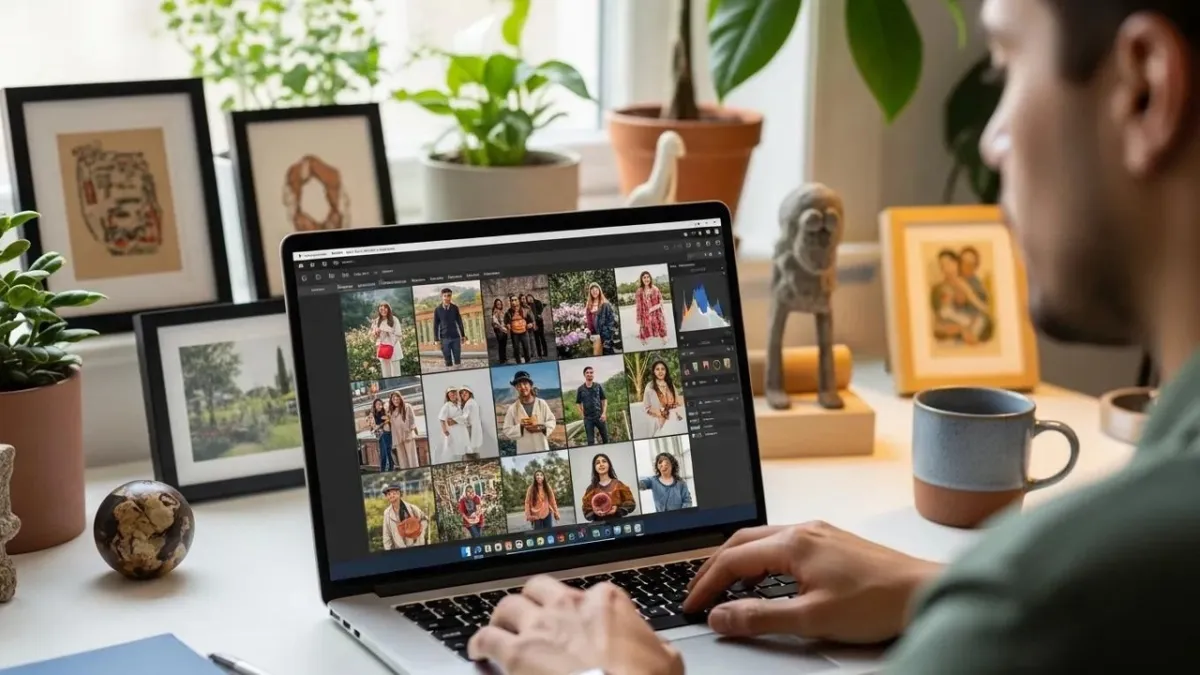
PixVerse stands out by combining AI image editing with video creation on a single platform. That matters when a still composite is only the first step — for example, turning a merged family photo into a short animated clip or a social-ready video.
PixVerse supports person integration through:
- Intelligent background analysis: The platform reads scene lighting and depth cues to guide placement and blending.
- Regular model updates: Ongoing improvements to image generation and editing keep cutout quality and compositing sharper over time.
- Flexible output: Start with a photo merge, then extend the same visual into video content without switching tools.
For creators who want both photo compositing and motion content, PixVerse reduces the friction between editing a still image and publishing a finished asset.
What Are the Step-by-Step Methods to Merge a Person into a Photo Seamlessly?
A natural-looking merge depends on preparation as much as the editing tool. Follow this workflow before you open any app.
- Select a high-quality background image. Start with a sharp, well-lit photo that has enough resolution to survive cropping and scaling.
- Choose a complementary subject image. Pick a person photo with similar lighting direction, angle, and color temperature to the background.
- Use precision editing tools. Adjust scale, position, shadows, and edge softness until the subject reads as part of the scene.
You can run this workflow in the PixVerse app or any AI editor with cutout and layering support. The steps stay the same; only the interface changes.
How to Prepare Background and Subject Images for Best Results?
Preparation prevents the most common compositing mistakes.
- Match lighting: If the background is shot in warm afternoon light, avoid a subject photo taken under harsh flash or cool indoor bulbs.
- Align perspective: A subject shot straight-on rarely looks natural on a background captured from a low or tilted angle.
- Check resolution: Both images should be high enough resolution that faces and edges stay sharp after scaling.
These checks take a few minutes upfront and save significant rework later.
Which AI Techniques Enable Realistic Photo Layering and Person Placement?
Modern AI editors rely on several techniques behind the scenes.
- Neural networks for image understanding: Models analyze scene structure so subjects sit at the correct depth relative to the background.
- Depth mapping: Three-dimensional depth cues help place figures in front of or behind existing elements convincingly.
- Advanced edge detection: Precise boundary detection produces cleaner cutouts and smoother blending at hair, clothing, and hands.
Understanding these capabilities helps you choose tools that handle complex backgrounds — crowds, foliage, and indoor scenes with mixed light — without obvious seams.
How Can You Achieve Professional Quality When Adding a Person to a Photo?
Professional-looking composites come down to lighting, tooling, and review.
- Recreate lighting and shadows: Add or soften shadows under feet, along jawlines, and on clothing so the subject shares the same light source as the background.
- Use capable editing software: Higher-quality AI models and manual adjustment layers make fine-tuning faster and more precise.
- Review for artifacts: Zoom in on edges, skin tones, and proportions before exporting. Small fixes at 100% zoom prevent obvious errors at full size.
These habits separate a quick social post from a composite that looks intentional and polished.
What Are Common Challenges in AI Photo Person Integration?
Even strong AI tools hit limits. Knowing the common issues helps you plan around them.
- Unnatural proportions: Scaling a subject too large or small breaks realism immediately. Match head size and shoulder width to other people in the scene.
- Inconsistent results across apps: Different models handle hair, glass, and motion blur differently. Test two tools if the first result is close but not quite right.
- Complex backgrounds: Busy scenes with overlapping objects can confuse automatic cutouts. Manual touch-up or a simpler background often works better.
Expect one or two iterations on difficult merges — that is normal, not a sign the workflow failed.
Which Best Practices Optimize Background Changer and Merging Accuracy?
A few habits improve accuracy across any AI photo editor. For platform-specific guidance, see the PixVerse documentation.
- Practice with the same tool: Familiarity with one app’s cutout, layer, and color tools speeds up every future edit.
- Test different image pairs: Some background and subject combinations blend easily; others need more adjustment. Building that intuition saves time.
- Use tutorials and guides: Short walkthroughs often reveal features — shadow brushes, feather sliders, local color match — that are easy to miss in the default UI.
Regular practice turns person addition from a one-off experiment into a reliable creative skill.
Where to Find Additional Resources and Tutorials for AI Person Addition in Photos
If you want to go deeper, several resource types help.
- Online tutorials: Photography and design blogs publish step-by-step guides for specific apps and compositing techniques.
- Video guides: YouTube channels demonstrate person addition workflows with real before-and-after examples.
- In-app help: Many AI editors include built-in guides for cutouts, backgrounds, and layer editing.
The PixVerse news section also covers AI editing updates and creative workflows worth bookmarking.
Which Online Tutorials and Video Guides Offer Step-by-Step Person Addition?
Useful starting points include:
- YouTube: Search for your specific app name plus “add person to photo” or “photo compositing” for visual walkthroughs.
- Official product sites: Adobe, Canva, and dedicated AI editor sites often publish structured tutorials for cutouts and compositing.
- Community groups: Photography and creator communities share tips, preset settings, and troubleshooting for difficult merges.
Pick one tutorial that matches your tool and follow it end to end before experimenting on important photos.
Conclusion
Adding a person to a photo with AI is faster and more accessible than traditional manual compositing. Choose an editor with strong cutouts, color matching, and layer control; prepare background and subject images with matching light and perspective; then refine shadows and proportions before export.
For creators who want photo editing and video creation in one place, PixVerse offers a capable path from still compositing to dynamic content. Start with a simple two-image merge, review the result at full zoom, and iterate until the composite looks natural — then reuse the same workflow whenever you need to complete a memory or a campaign visual.
FAQ
Can AI add a person to a photo realistically?
Yes. Modern AI photo editors remove backgrounds, match lighting and color, and support layer-based positioning so added subjects blend into the scene. Results depend on source image quality, lighting match, and the tool you use.
What is the easiest way to add someone to a picture?
Upload your background and subject photos to an AI editor with automatic background removal, place the cutout subject on the background layer, then adjust size, position, and shadows. Apps like PhotoRoom and PixVerse streamline this with guided workflows.
Which AI app is best for adding a person to a group photo?
PixVerse, Remini, and PhotoRoom are strong options. PixVerse suits users who may also want video output; PhotoRoom excels at quick cutouts; Remini helps when source images need enhancement before compositing.
Do I need Photoshop to merge a person into a photo?
No. AI-powered web and mobile apps handle cutouts, layering, and basic color matching without manual masking. Photoshop still offers maximum control for commercial work, but AI tools cover most personal and social use cases.
How do I avoid obvious editing marks?
Match lighting and perspective between images, scale the subject to fit the scene, add consistent shadows, and zoom in to clean up hair and edge artifacts before exporting.