How to Make a Music Video with AI from a Song (2026 Guide)
Learn how to turn any song into a styled music video with AI in minutes. Upload audio, add lyrics subtitles, a character, and export 9:16 or 16:9 MV.
To make a music video with AI from a song, you upload a finished audio track to a music-aware generator, let it analyze the song, choose a visual style and aspect ratio, optionally add a character image and lyric subtitles, then generate and export a styled MV. The whole process takes minutes instead of a full production shoot, and it works for original recordings as well as AI songs from tools like Suno or Udio.
This guide walks through the complete workflow step by step, explains the inputs that matter most, and shows how to do it on PixVerse with VibeMV AI, the music-video Mini App that turns an audio file into a subtitled, beat-aware video.
If you are still comparing tools before choosing a workflow, see our guide to the best AI music video generators for pricing, subtitles, character consistency, and Suno-to-video support.
Here is an example of a finished music video made from a single audio file with VibeMV AI — styled, beat-synced visuals and a consistent on-screen performer.
What an AI Music Video Generator Actually Does
An AI music video generator turns an audio track into a finished video without a camera, a crew, or a manual editing timeline. Unlike a general text-to-video AI generator that starts from a written prompt, a music-first generator starts from the song itself. It reads the audio, finds the structure, and builds visuals that move with the music.
The good ones do more than play images over your audio. They analyze the track for energy, tempo, vocal sections, and natural transition points, then map scene changes to those moments so verses, choruses, and drops feel intentional. The result is closer to a directed music video than a slideshow.
A useful music-video workflow usually combines a few related jobs:
- Audio to video: turn an MP3, WAV, M4A, or AAC file into a moving visual track.
- Style direction: apply a visual look — cinematic, anime, retro, dreamy, and similar presets — across the whole clip.
- Lyric subtitles: detect the lyrics from the audio and burn in synced captions for a lyric-video feel.
- Character performance: keep a consistent on-screen subject by uploading a single character photo.
- Multi-format export: output 16:9 for YouTube, 9:16 for TikTok, Reels, and Shorts, or square and portrait ratios for other feeds.
What You Need Before You Start
The quality ceiling of an AI music video depends heavily on the inputs. Prepare these before you generate.
| Input | Recommendation |
|---|---|
| Audio file | A clean, finished track. Common formats: MP3, WAV, M4A, AAC. |
| Length and size | Keep the clip within the tool limits — on VibeMV AI, between 10 seconds and 6 minutes, up to 15 MB. |
| Lyrics | Have the correct lyrics ready so you can verify or fix the auto-detected subtitles. |
| Character photo (optional) | One clear, front-facing photo if you want a consistent performer on screen. |
| Visual direction | A rough idea of the mood: genre, color, and energy you want the video to match. |
If your song has no vocals, plan to use an instrumental mode so the generator does not try to detect lyrics that are not there.
How to Make a Music Video with AI: Step by Step
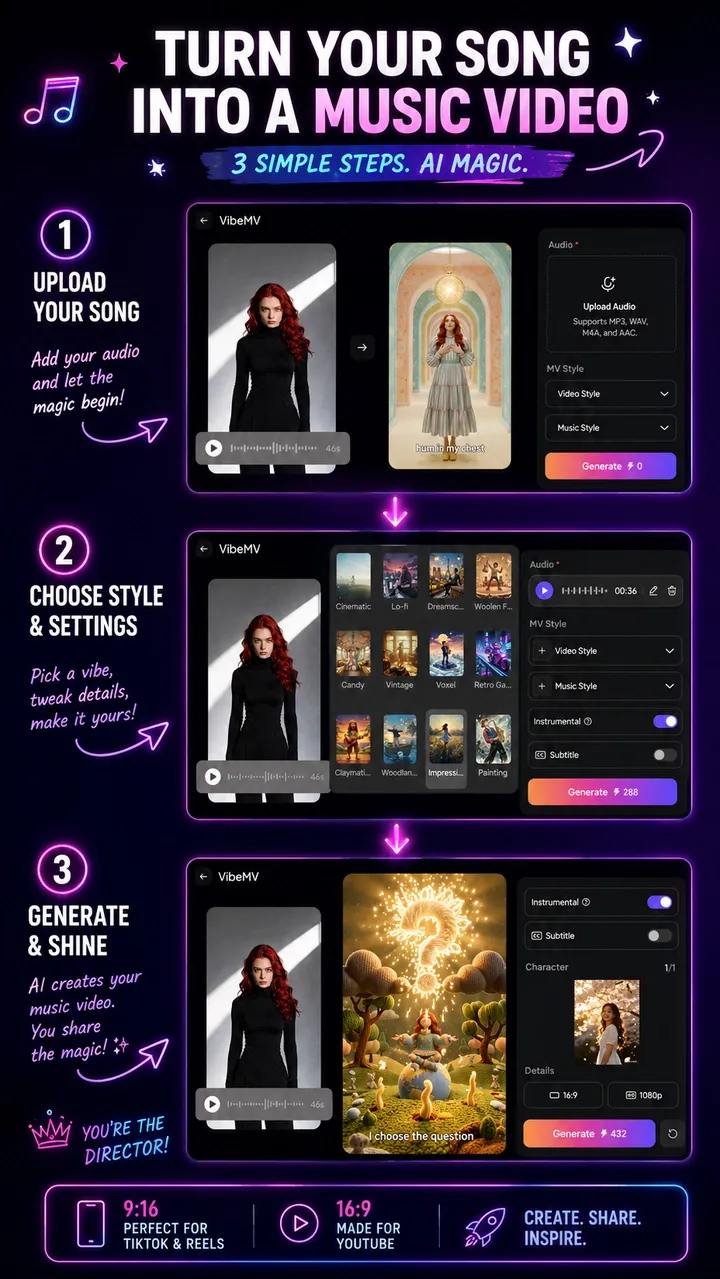
The steps below use VibeMV AI on PixVerse, but the same logic applies to most music-first generators. The diagram below maps the full flow from audio upload to finished MV.
Step 1: Upload Your Audio
Open VibeMV AI and upload your audio file. Supported formats include MP3, WAV, M4A, and AAC, with a 15 MB size limit and a length between 10 seconds and 6 minutes. After upload, the track appears with its total duration, and the generation cost updates based on length and resolution.
If you only want a section of the song, trim the audio first so the video focuses on the strongest part — usually a chorus or a hook.
Step 2: Pick a Video Style and Music Style
Choose a Video Style preset to set the visual direction for the whole MV. This is the fastest way to make the output feel deliberate rather than random.
Then set a Music Style so the visuals match the genre. VibeMV AI supports a wide list, including Pop, Rock, Hip Hop, R&B, Jazz, Reggae, Country, Folk, Electronic, Classical, Soul, Funk, Metal, Ambient, and Others. Both fields are optional, but they meaningfully improve how well the visuals fit the song.
Step 3: Add a Character for a Consistent Performer (Optional)
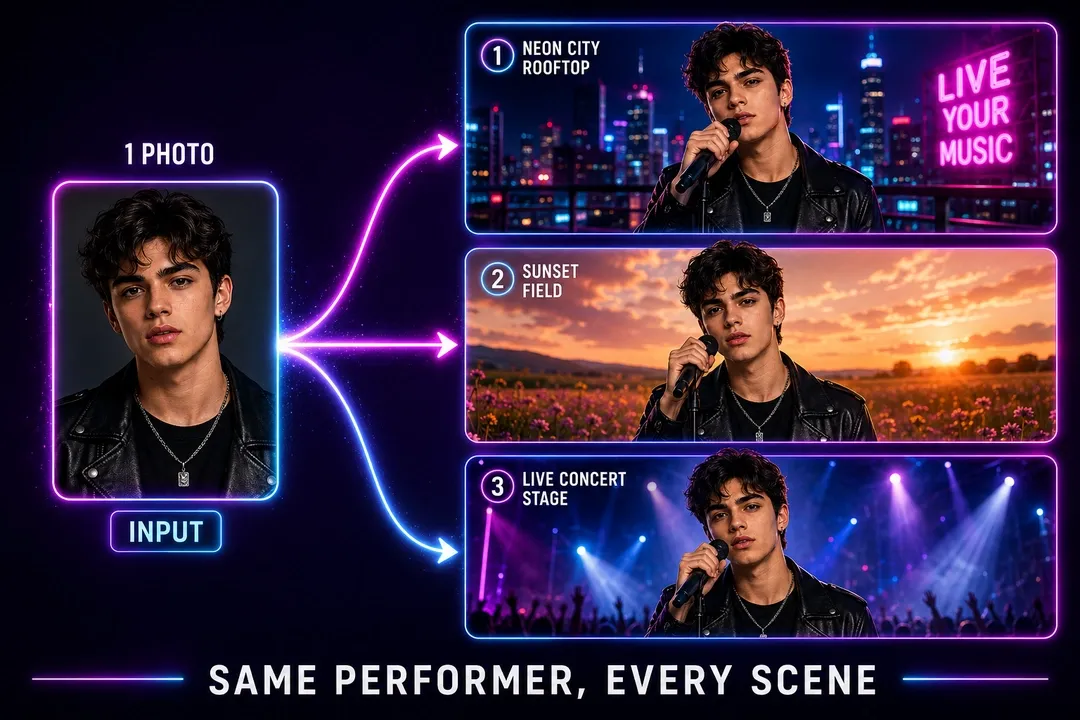
If you want a person on screen rather than abstract visuals, upload one clear front-facing Character photo. The generator keeps that character consistent across scenes, which is what turns a generic visualizer into a performance-style music video with a recognizable lead. For more detailed identity-locking habits, use our AI character consistency guide.
Use a single, well-lit portrait without heavy occlusion, group shots, or extreme angles for the most reliable result.
Step 4: Handle Lyrics and Subtitles
Decide how you want lyrics to appear:
- Subtitles on: the tool detects the lyrics from your audio. Use Subtitle Verification to review the detected text, edit any mistakes, and re-identify the lyrics if needed before generating. This is the difference between clean captions and misheard words.
- Subtitles off: the MV generates without on-screen lyrics.
- Instrumental mode: for tracks without vocals, turn on the instrumental switch. When instrumental mode is on, subtitles are disabled because there are no lyrics to display.
Always verify subtitles when accuracy matters — auto-detected lyrics can misread fast or layered vocals.
Step 5: Choose Aspect Ratio and Quality
Pick the aspect ratio that matches where the video will live:
- 16:9 for YouTube and landscape players.
- 9:16 for TikTok, Reels, and YouTube Shorts AI video workflows.
- 1:1, 4:3, or 3:4 for other feeds and layouts.
Then choose quality: 720p for faster, lower-cost drafts, or 1080p for a sharper final export. VibeMV AI uses a credit-based system, and cost scales with song length and the resolution you pick.
Step 6: Generate, Review, and Re-export
Generate the video, then watch it all the way through before publishing. Check that:
- Scene changes land on real musical moments, not random cuts.
- Subtitles stay synced and readable.
- The character (if used) stays consistent across scenes.
- The chosen ratio frames the subject correctly for the target platform.
If a section feels weak, adjust the inputs — change the style, fix the lyrics, or trim the audio — and generate again. Iteration is normal and usually faster than re-shooting anything.
How to Turn a Suno or Udio Song Into a Music Video
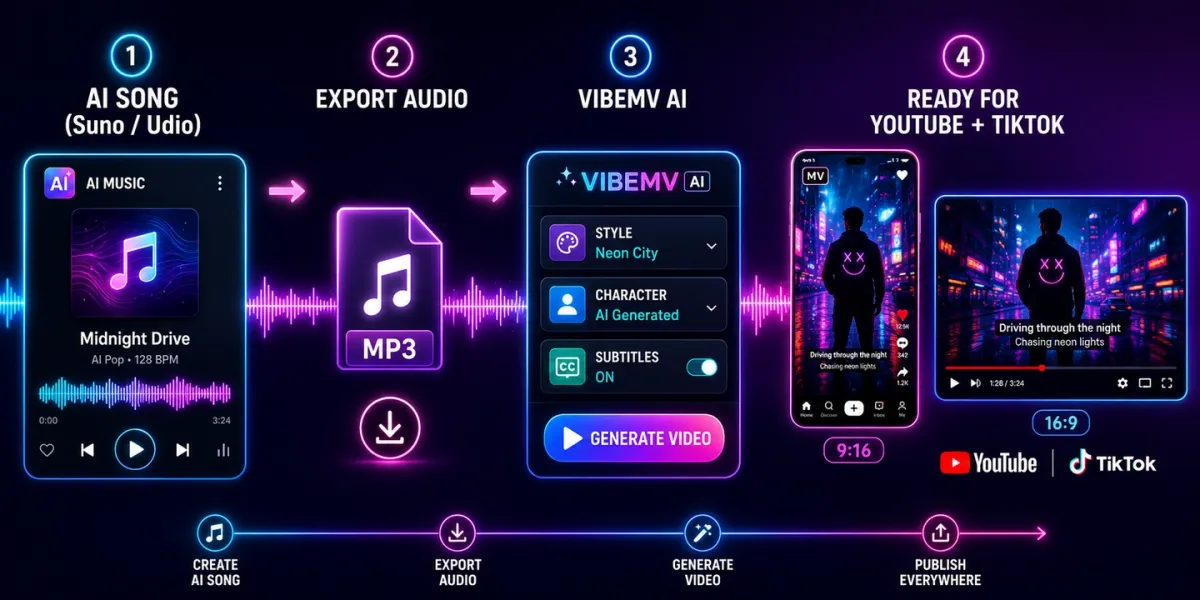
If you make music with AI song tools like Suno or Udio, the workflow is the same with one extra step. These platforms generate the audio; a music-video generator turns that audio into visuals. For the broader video-tool landscape, compare the current best AI video generators before choosing a production stack.
- Export or download your finished track from Suno or Udio as an audio file (MP3 or WAV).
- Upload that file to VibeMV AI like any other song.
- Verify the lyrics, since AI vocals can be harder to transcribe than studio recordings.
- Choose your style, character, ratio, and quality, then generate.
This pairing — AI music plus an AI music video generator — lets a solo creator release a track with matching visuals on the same day, with no editing software in between.
Tips for Better AI Music Videos
Small input choices make a large difference in the final result.
| Goal | What to do |
|---|---|
| Cleaner captions | Verify and correct detected lyrics before generating, especially for fast or layered vocals. |
| A believable performer | Upload one sharp, front-facing character photo and avoid busy backgrounds. |
| Better scene timing | Trim to the strongest section so cuts land on a clear hook or chorus. |
| Platform-native output | Match the aspect ratio to the destination before rendering, not after. |
| Genre-accurate visuals | Set both Video Style and Music Style instead of leaving them blank. |
| Lower cost per try | Draft in 720p, then re-render the keeper in 1080p. |
For more advanced shot-by-shot control or cinematic single clips, you can also explore PixVerse video models such as Seedance and HappyHorse for music-video scenes that need precise camera or audio control.
Common Mistakes to Avoid
- Skipping subtitle verification. Auto-detected lyrics often contain errors that are obvious to viewers.
- Using a noisy character photo. Group shots, sunglasses, and extreme angles reduce character consistency.
- Leaving the style blank. Without a Video Style or Music Style, the visuals are less likely to match the song.
- Generating the full track first. Test a short section before committing credits to a six-minute render.
- Wrong aspect ratio. A 16:9 video cropped to vertical later usually loses the framing you wanted.
Conclusion
Making a music video with AI from a song comes down to a clear sequence: upload a clean audio file, set a visual and music style, optionally add a character and lyric subtitles, pick the right aspect ratio and quality, then generate, review, and iterate. A music-first generator handles the analysis and timing so your job is direction and review, not manual editing.
If you want to try the full workflow, VibeMV AI on PixVerse turns an audio file into a subtitled, styled MV with optional character consistency and multi-format export. Upload a track, verify the lyrics, choose a look, and generate your first AI music video in minutes.
FAQ
How do I make a music video with AI from a song?
Upload a finished audio file to a music-aware generator, let it analyze the song’s structure, choose a visual style and aspect ratio, optionally add a character image and lyric subtitles, then generate and export. On VibeMV AI, you can upload MP3, WAV, M4A, or AAC files between 10 seconds and 6 minutes and export in 16:9, 9:16, 1:1, 4:3, or 3:4.
Can I turn a Suno or Udio song into a music video?
Yes. Export your track from Suno or Udio as an audio file, then upload it to an AI music video generator like VibeMV AI. Verify the detected lyrics, pick a style and ratio, and generate. This lets AI music creators release a song with matching visuals quickly.
Does the AI add lyrics subtitles automatically?
It can. With subtitles turned on, the tool detects lyrics from your audio and you can review, edit, and re-identify them before generating. If your track has no vocals, use instrumental mode, which disables subtitles since there are no lyrics to display.
Can I keep the same character throughout the video?
Yes. Upload one clear, front-facing character photo and the generator keeps that performer consistent across scenes, which creates a performance-style music video instead of abstract visuals.
What aspect ratio should I use for TikTok or YouTube?
Use 9:16 for TikTok, Reels, and YouTube Shorts, and 16:9 for standard YouTube and landscape players. Choose the ratio before generating so the framing matches the platform.
How long can the song be?
On VibeMV AI, the audio must be between 10 seconds and 6 minutes, with a maximum file size of 15 MB. Trimming to the strongest section often produces a tighter, more shareable video.
Is the output good enough to publish?
Often yes for social and release-day content, but always review the full video first. Check subtitle accuracy, scene timing, character consistency, and framing, then regenerate weak sections before publishing.